
Tomasz Ziętek
Content Creator
Experienced content and SEO specialist working with SaaS businesses since 2016. After hours, he's cycling, cooking, traveling, or digging through record crates.
I filled in a contact form on a record shop's website and heard nothing back for 30 days. The form worked fine. Nobody was reading the inbox behind it.
Search for "WordPress customer service" and you'll get two completely different things: people trying to reach WordPress.com's support team, and people trying to build customer support into their own site. This guide is the second one: running customer service for your website visitors on WordPress with tools you control, from self-service content and live chat to ticketing and automation.
If you run a business on WordPress — and WordPress runs 41.2% of the web — at some point the contact form stops being enough. Requests pile up in a personal inbox, two people answer the same question differently, and nobody knows how long anything took. That costs you response time, missed sales, and a support operation that gets harder to manage as volume grows.
A working WordPress customer support setup has four layers, and you can have all four running by this afternoon. We'll break down those layers, compare plugins with hosted platforms, look at recommended tools and WooCommerce fit, walk through setup, cover site-speed tradeoffs, and show which metrics to track if you want support to scale cleanly.
What WordPress customer service means
Quick disambiguation, because the phrase does double duty.
If you're on WordPress.com and need help with your own site, paid plans include chat and email support through the help icon in your dashboard. Self-hosted WordPress.org has no official support desk at all — just community volunteer forums. That's the whole answer to that question.
Everything below is about the other meaning: running customer support for your visitors, on your WordPress site, using plugins and software you control.
The four layers of a WordPress support stack
Before you install anything, know what you're assembling. Every functioning support setup has four layers:
Self-service — knowledge base, documentation, FAQ that ensure common support issues get resolved faster.
Real-time — live chat paired with AI chatbot tools that provide immediate help and smooth handoff to agents.
Asynchronous — ticketing system, shared inbox, contact forms.
Automation — routing rules, canned responses, AI reply suggestions across a range of support workflows.
Most guides start at layer three. Start at layer one instead.
Self-service is the cheapest layer to run and the one almost everyone skips. Documentation is crucial for resolving common support issues. Roughly 61% of customers prefer self-service for simple issues, and about 70% expect a company's website to offer it. Every question your knowledge base answers is a support ticket that never gets created.
Then add real-time. Live chat leads channel preference at around 41%, ahead of phone. Combine AI automation with live support so chat handles simple requests fast and agents step in when needed. Ticketing catches what chat and docs don't.
Plugin or hosted platform? Decide this first
This is the fork in the road, and it's worth ten minutes of thought before you install a single support plugin.
Self-hosted plugins — SupportCandy, Awesome Support, Fluent Support, KB Support, Heroic Inbox — keep tickets inside your WordPress database. Your data stays yours, pricing is usually flat rather than per-agent, and everything lives in one dashboard.
Two costs nobody mentions. First, ticket data lands in wp_posts and wp_postmeta, and unindexed queries on those tables are a well-known performance killer once volume grows. Second, and more important: your help desk is offline whenever your site is offline. That's precisely when customers most need to reach you. On self-hosted WordPress, server-related issues belong with your hosting provider, and managed hosting support is usually the right place to escalate them rather than a plugin vendor.
Hosted platforms — Text, Freshdesk, Zendesk, Tidio, Tawk.to — run on the vendor's infrastructure and connect through a WordPress plugin or a pasted script. The difference matters more than it sounds: an official WordPress.org plugin means you install from your own dashboard and never touch your theme files. Text ships one; several of the others still hand you a snippet.
One disclosure, since we build one of these. Text is a hosted platform, which means the data-control point above counts against us — conversations live on our servers, not in your wp_posts table. What we kept from the plugin side is the install: you add it from your WordPress dashboard, connect an account, and never touch a theme file or a license key.
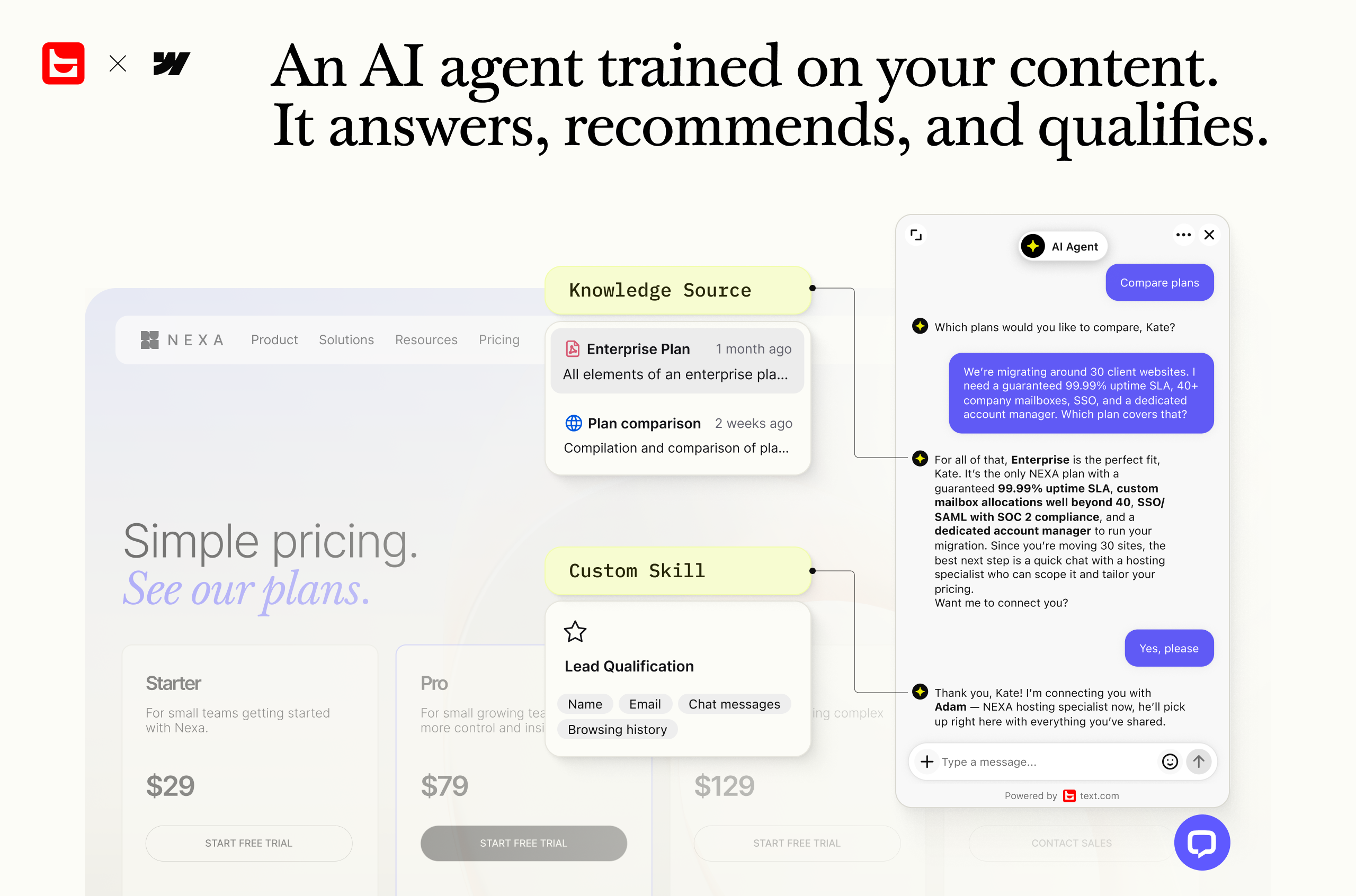 The reason to mention it here is the four layers. Most WordPress setups assemble them from three or four separate plugins, and the seams show — the chat widget can't see the knowledge base, the ticket can't see the chat. Text runs all four in one workspace: an AI agent trained on your own content for self-service, live chat with human handoff for real-time, help desk and ticketing for async, and custom skills written in plain language for automation.
Self-hosted plugin | Hosted platform | |
Best for | Solo sites, low volume, strict data control | Teams of 2+, stores, growing volume |
Cost model | Flat annual license | Per agent, per month |
Main risk | Down when your site is down; DB load at scale | Third-party script; data leaves your stack |
The rule of thumb: hobby site or a few tickets a week, go with a plugin. A store, a team, or any site where support has to work during an outage, go hosted.
Useful questions either way: How long does setup take? Is there a unified inbox? Does it include a self-service help center? Will it scale past your current volume? What integrations does it have? What reporting? And what's the vendor's own customer support like? Also, review whether the vendor can handle your specific case, understand when a theme or plugin developer must handle a request directly, and note that support agents troubleshoot a problem faster when you provide clear, detailed information.
The tools worth considering, by job
Grouped by what they do, because you'll likely need more than one.
Live chat and AI agents
Text — full disclosure, it's ours — bundles live chat, an AI agent trained on your own site content, help desk, and ticketing into one workspace, from $19/month with a 14-day trial. Tidio for small sites wanting a free tier with an AI chatbot. Tawk.to if the budget is genuinely zero. HelpCrunch and Crisp sit in between. On WordPress.com, live chat support depends on your paid plan level, is available 24 hours a day, and paid-plan support is handled through email or live chat rather than phone. Here's more about best live chat for WordPress.
Ticketing and shared inbox
Help Scout for an email-style shared inbox that helps teams track each support request. Freshdesk and Zendesk for larger teams needing omnichannel support and handling a wider range of customer service case workflows across channels. SupportCandy, Fluent Support, and Awesome Support for self-hosted ticketing with free versions and no agent caps.
Knowledge base
BetterDocs and Heroic Knowledge Base are the two most complete options. BasePress and weDocs are lighter. All of them turn WordPress into a documentation site without touching your theme. WordPress.org also gives users access to extensive guides and troubleshooting articles. It also recommends searching the forums before opening a support ticket, and never sharing sensitive credentials in public forum posts.
Contact forms
WPForms, Gravity Forms, or Fluent Forms as the front door — but only if you pipe submissions into your help desk rather than an inbox.
If you run WooCommerce, order context is the whole game
WooCommerce powers roughly a third of online stores by store volume, and store support has a requirement that generic setups miss.
An agent answering "where's my order?" without the order in front of them is doing data entry, not support. They're asking for an email address, switching tabs, searching, switching back. Every time.
Fix it by connecting the two systems. Before you make a significant support-flow change in WooCommerce, back up the site.
Some plugins add a "submit ticket" button directly to the order in a customer's My Account page, so the ticket arrives already attached to the purchase and helps support teams find the right order context faster. Others surface order history inside the conversation view. If customers need to change a plan or resolve billing details, that context matters just as much. If you're on a hosted platform, look for an order sync integration that pulls WooCommerce data into the agent's sidebar. Whichever route, the requirement is the same: the agent sees the order without leaving the ticket, which is especially helpful for businesses handling repeat order-status questions.
How to set up and contact WordPress customer service on your site
Six steps, in this order. The order matters more than the tools.
1. Map your top 10 requests. Before choosing software, go through the last few months of contact form submissions and emails. Write down the ten questions that come up most, including the main reasons people reach out: billing, setup, account access, and technical issues. This list drives every other decision.
2. Publish the knowledge base first. Turn those ten questions into ten articles. Write plainly, link the knowledge base from your footer and navigation. This is your deflection layer and it works while you sleep. On a hosted platform the help center is usually built in. On WordPress, use a plugin:
· BetterDocs — the most feature-complete option, with AI search and analytics
· Heroic Knowledge Base — premium, pairs with the same vendor's shared inbox
· BasePress — free, multiple knowledge bases from one install
· weDocs — free and deliberately minimal
3. Install the ticketing layer. Hosted route: install the vendor's WordPress plugin, paste in your license key or account ID, confirm the widget renders on the front end. Text's plugin — full disclosure, it's ours — skips the key: search, install, activate, connect the account, and you're handling conversations in the same session. If you need to contact WordPress.com itself, paid plans get support via email or live chat, free plan users only have community forums, and help@wordpress.com is the email contact. WordPress.com support aims to respond to requests within 24 hours.
WordPress plugins:
· SupportCandy — free version with unlimited tickets and agents
· Fluent Support — built for speed, strong WooCommerce and LMS integrations
· Awesome Support — the veteran, extensible through add-ons
· KB Support — ticketing and knowledge base in one plugin
Hosted platforms:
· Text — live chat, AI agent, help desk, and ticketing in one workspace, installed from your WordPress dashboard, from $19/month
· Help Scout — shared inbox that feels like email
· Freshdesk — free tier, scales to large teams
· Zendesk — omnichannel, built for enterprise volume
4. Route your contact form into it. This is the step most guides skip. A contact form that emails one person's inbox isn't customer service — it's a bottleneck with a nice design, and it's what that record shop had. Connect the form so every submission becomes a ticket that somebody owns; a clear support request with the exact error message, screenshots, and other details helps agents troubleshoot faster. All four of these integrate with the tools above:
· WPForms — the most popular WordPress form builder
· Fluent Forms — lightweight, native Fluent Support handoff
· Contact Form 7 — free and everywhere, needs an add-on to route
· Gravity Forms — premium, deepest conditional logic
5. Set up canned responses and routing. Write saved replies for your top ten questions. Add routing rules so billing goes to billing. Set business hours so customers know what to expect. Every tool named above handles this; the hosted platforms add AI reply suggestions on top.
6. Add the chat widget and set expectations. Configure your offline message, state a realistic response time, explain when customers should follow up, and define what happens if the team cannot resolve the issue on first contact. An unanswered chat widget is worse than no chat widget.
· Text — bundles chat with the ticketing you set up in step 3
· Tidio — free tier plus an AI chatbot
· Tawk.to — genuinely free, no agent caps
· Crisp — lightweight widget, free for two seats
Don't let your support stack slow your site down
Support widgets are third-party JavaScript, and WordPress sites live or die by Core Web Vitals. Almost nobody covers this.
WP Rocket speed-tested five live chat plugins on a clean WordPress install against a 320 ms, 42 KB baseline. Page weight ranged from 230 KB (Tawk.to) to 542 KB (HubSpot). But here's the useful part: most plugins still scored 100/100 on mobile PageSpeed, including the heavier ones. Only HubSpot actually degraded the metrics Google measures, dropping to 78/100 with a 2.4-second LCP.
Total page weight and Core Web Vitals are not the same thing. A widget can add several hundred kilobytes without moving your scores — and the only way to know how yours behaves is to test your own build.
Three things that reliably help: delay the widget until the first user interaction, load it only on pages where support matters, and re-run PageSpeed Insights after installing anything.
What to measure once it's live
Track five things: first response time, resolution time, deflection rate (knowledge base views divided by tickets), CSAT, and ticket volume by topic.
That last one closes the loop — it tells you which articles to write next, which sends you back to step one.
Set your baseline on response time. Speed of response is the single most-cited driver of service satisfaction, but speed alone is not enough if the issue is not fully resolved. The record shop replied in the end. By then I'd bought the record somewhere else.
FAQ
Does WordPress offer customer service?
For your own site, yes on WordPress.com paid plans, via chat and email. Self-hosted WordPress.org offers community forums only — no official support desk.
What's the best free WordPress customer service plugin?
SupportCandy and Awesome Support both offer free versions with unlimited tickets and agents. Tawk.to is genuinely free for live chat with no agent caps.
Do support plugins slow down WordPress?
They add weight, but weight and Core Web Vitals aren't the same thing. Test your own build, delay widget loading until interaction, and check PageSpeed Insights after install.
Can I run customer service on WooCommerce with the same setup?
Yes — with one addition. Make sure your help desk shows order data inside the ticket, either through a WooCommerce-native plugin or an order sync integration.
Keep learning
- Customer Service
Customer experience metrics: five stars and a cancellation
13 min read - Customer Service
AI in customer service: what it automates, breaks, and what customers actually want in 2026
19 min read - Customer Service
Text vs Gorgias: why e-commerce brands see the bill rise with automation
18 min read