Skip to content

Turn any of your team’s tasks into working automation.

Try it free
  • Sales and upsells

    Shoppers who are ready to buy get the right offer at the right moment — from discounts and bundles to warranties.

    Example skills in category

    • Open a Salesforce upsell case
    • Send a discount when they hesitate
    • Give a code at checkout
    Check templates
  • Lead capture

    Turn conversations with interested shoppers into contacts your sales and marketing teams can follow up with.

    Example skills in category

    • Add every new chatter to Salesforce
    • Qualify leads and send them to Salesforce
    • Request consultations from chat
    Check templates
  • Catch signs that a customer may cancel and respond with the right offer, follow-up, or escalation.

    Example skills in category

    • Offer a retention deal on cancellation
    • Open a Salesforce case on a bad rating
    • Win back an unhappy customer
    Check templates
  • Agent assist

    Give your team a head start by handling the hello, gathering details, and finding information before an agent takes over.

    Example skills in category

    • Greet new visitors
    • Look up an order and send tracking
    • Ask the customer for more detail
    Check templates
  • Chat routing

    Get every conversation to the right team automatically, from support and product questions to after-hours requests and escalations.

    Example skills in category

    • Open a ticket the moment a chat starts
    • Route chats that arrive after hours
    • Take after-hours requests as tickets
    Check templates
  • Chat organization

    Keep your inbox organized, surface the conversations that matter, and filter out spam and abuse.

    Example skills in category

    • Close and file spam
    • Tag new chats for QA review
    • Tag chats by keyword
    Check templates
  • Feedback and reports

    Turn conversations into useful feedback, summaries, and reports for your team.

    Example skills in category

    • Remind agents to ask for reviews
    • Ask customers for feedback
    • Email the transcript to the visitor
    Check templates

Connect to any tool you use

Shopify
Salesforce
ChatGPT
HubSpot
Mailchimp
Klaviyo
Slack
Webflow
WordPress
WooCommerce
Magento
BigCommerce
WhatsApp
SAP Commerce Cloud
Messenger
Adobe Commerce
Medusa
commercetools
Swell
Instagram

Whatever you can describe becomes automation with skills.

Make your first skill

Start with your idea, or a template.

Share an outline of your automation, explaining what you need in your own words, or start from a ready-made template instead.

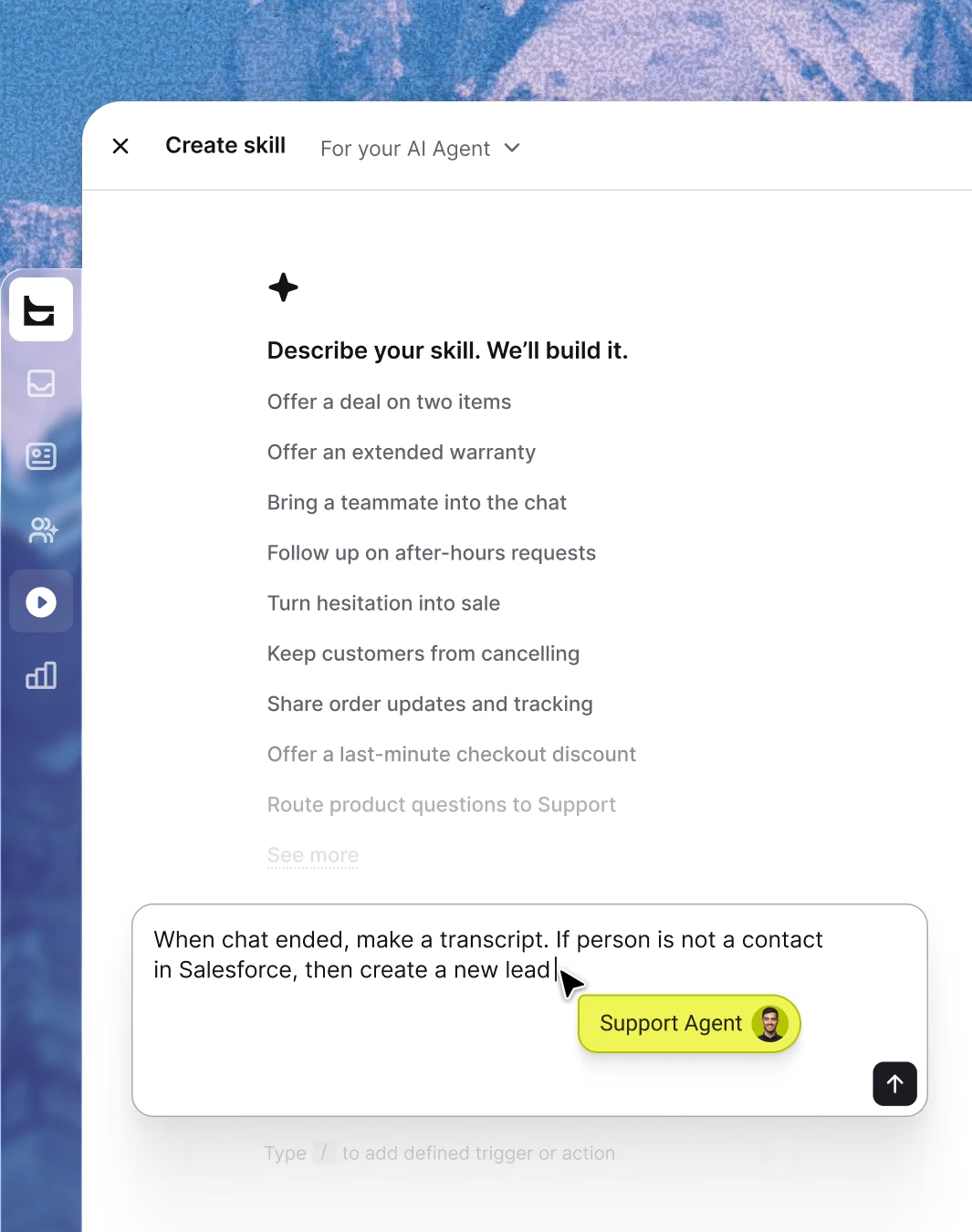
Skill builder prompt field with the text “When chat ended, make a transcript. If person is not a contact in Salesforce, then create a new lead.”

Let AI build what you described.

AI asks for the details it needs to build a complete skill, and hands it to you, ready to connect to the tools you already use.
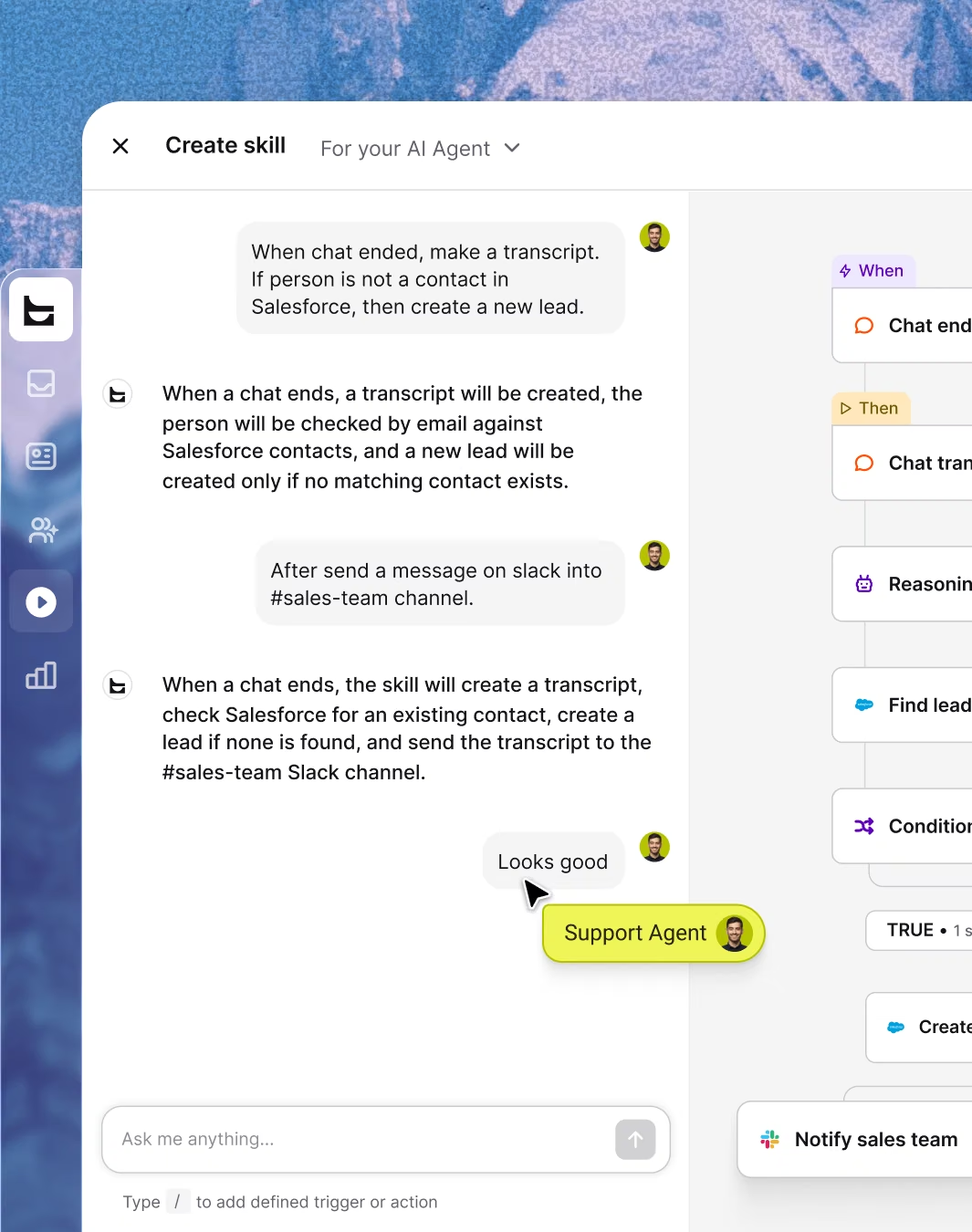
Skill builder with a chat on the left and the generated automation flow on the right.

Edit each step, without starting over.

Publish whenever you’re ready. Everything stays editable in the builder, so you can watch how it performs and refine anything, anytime.
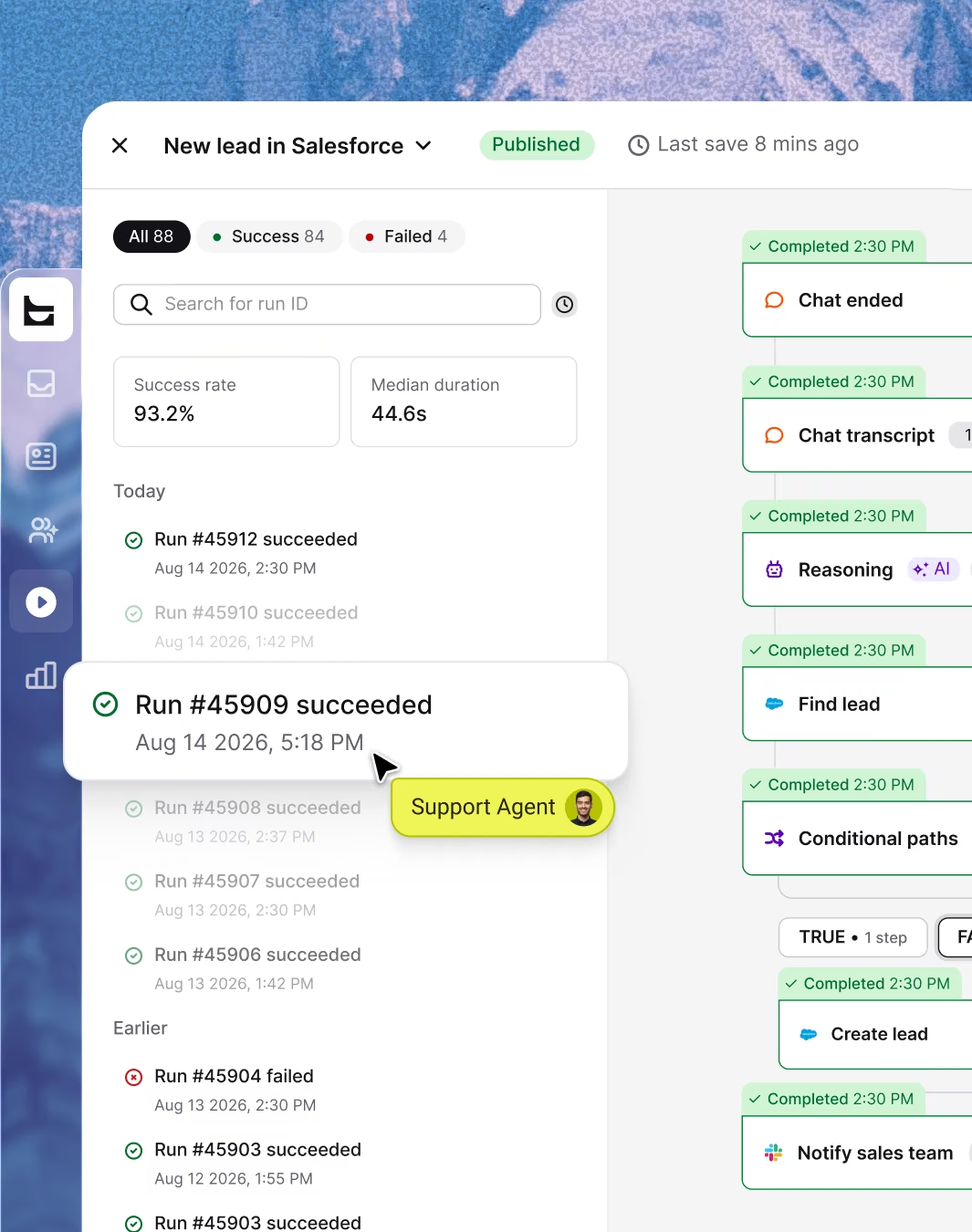

Skill runs view listing successful and failed runs next to the step-by-step flow.
Jan Białek, AI Agent Manager at Text, Inc.

One customer's skills have already run 4.3 million times and counting. That's 4.3 million moments nobody had to do by hand.

Your next skill
is a sentence away.

Put what you need into words. AI asks what's unclear, and creates it with you.

Frequently asked questions

  • Do I need to know how to code?
    No. Describe the skill in plain language, or assemble it from the same blocks in the builder. It's no-code automation from the first step to the last, so anyone on your team can build one, not just developers.
  • What should I include in my description for the generator?
    Four things: what starts it, which tools it should use, what actions to take, and what result you want. One sentence is enough, for example: "When a chat gets a bad rating, create an urgent ticket and ping our support lead on Slack." The more specific your tools and outcome, the less the generator has to guess.
  • How do templates work?
    Pick one that fits how you want to automate your work. The builder comes pre-filled with the steps. If needed, it'll ask for specifics or ask you to connect the tools involved. You get a ready, editable skill where you can change any step, then publish.
  • What happens if the generator asks me questions?
    That's a normal part of building a skill. If something's left open, like which Slack channel or which keywords should trigger a rule, the generator asks so it can help you pin down exactly what you need, instead of guessing on your behalf. Answer in plain language and it continues building the automation around your answer.
  • What can trigger a skill?
    It depends on the mode. Workspace skills react to system events, a chat ending, a ticket being created, a rating coming in, a schedule, or a webhook, across every tool you connect. AI Agent skills work differently: the trigger is the Agent recognizing that a live conversation matches what the skill handles, like a customer asking where their order is. That split is what makes this a complete customer service automation system, not just a way to react to data.
  • What actions are available?
    Dozens, across every tool you connect, covering everything from simple notifications to full help desk automation. For example, one skill can create a ticket in HelpDesk, tag it as urgent, and post a summary to Slack, all in a single chain, triggered by one bad rating. The full list of building blocks is in the builder.
  • Can I still change it after it's generated?
    Yes. Every generated skill opens in the builder as a real, editable workflow, not a locked, finished product. Change any trigger, action, or condition, then republish whenever you're ready.
  • How does authentication work?
    Each tool you connect asks for its own credentials, a login and password or an API token, the same way you'd connect it anywhere else. Text never stores more access than the skill actually needs.
  • How do I connect my store?
    Open the integration from your account settings and follow the setup steps for your platform. No code required, and once it's connected, its triggers and actions show up directly in the builder.