
Tomasz Ziętek
Content Creator
Experienced content and SEO specialist working with SaaS businesses since 2016. After hours, he's cycling, cooking, traveling, or digging through record crates.
The widget had been gone for eighteen months before anyone noticed. A chat script that vanishes in a rebuild doesn't throw an error, it goes quiet. Live chat is usually the first thing a Webflow site adds that isn't design, and the first thing that makes a team notice there's no plugin layer to hold it in place.
There are two ways in: a Webflow App installed from the Marketplace, or a script pasted into custom code. People arriving from WordPress search "webflow plugin" and find neither, because Webflow runs the server and doesn't hand out keys to it.
Which route you take decides who owns the widget after launch, whether it survives a rebuild, and what happens the day the vendor changes something. That's worth ten minutes before you install anything.
Why Webflow doesn't have plugins
A WordPress plugin runs on your server, inside your install, with access to everything. Webflow runs the server. The platform outputs clean, semantic HTML, CSS and JavaScript, hosts it and renews the SSL, which means there's no box for a third party to run code in and no security patch for you to manage.
That's the trade. You give up the kind of deep access WordPress developers take for granted, and in exchange a bad third-party update can't take the whole site with it. The pages are already built and served, so the worst case is a broken widget rather than a white screen.
What Webflow built instead is a marketplace. Apps talk to your site through its APIs, ask for named permissions, and get reviewed before they're listed.
What Webflow gives you instead
There are three routes and only two of them are supported in any real sense.
Webflow Apps
Apps install from the Marketplace into your workspace. They ask for named permissions before they run — authorized user information, site data and publishing, custom code, assets — and you can see and revoke them later. Webflow reviews what goes in there. It doesn't endorse it, which is a distinction the listing pages state plainly.
The practical benefit is that the vendor maintains the loader. When they change how their widget boots, your site gets the change without anyone re-pasting anything.
Custom code
You paste a script into one of three places: site-wide in Site settings, per page in Page settings, or into an Embed element on the canvas. Webflow raised the custom code limit to 50,000 characters on paid sites, which no chat widget will ever trouble.
The part that catches teams out is the plan. Site-wide and page-level custom code needs a paid Site plan or a Workspace plan, so on a free project the widget won't reach your published site.
The third route, which isn't one
Some vendors publish a page titled "Webflow integration" that turns out to be a snippet and a screenshot rather than a Marketplace listing. It works. It's also custom code with better marketing, so check which one you're being handed before you commit a team to it.
Apps or code: how to choose
Webflow App | Custom code | |
|---|---|---|
Install | From your workspace | Paste and publish |
Plan needed | Free tier can install | Paid Site or Workspace plan |
Page targeting | Handled in the app | Page settings, one page at a time |
Survives a rebuild | Yes | Only if someone remembers the snippet |
Survives a code export | No | Yes |
Who can do it | Anyone on the team | Anyone, but someone has to own it |
That export row matters more than it looks. If your project might leave Webflow one day, code embeds travel with the export and Apps don't.
Everything else favors the App. A snippet lives in a settings panel nobody opens, and the person who pasted it usually isn't the one maintaining the site a year later. That's how a widget goes missing for eighteen months.
What else Webflow Apps do
Chat is one job. The same marketplace handles form submissions routed straight into a CRM, content synced from an external database into CMS collections, and the repetitive data tasks that otherwise eat a designer's Monday. The workflow gain is the point: the team spends its day on design rather than on moving information between tools.
Browse it before you build anything custom. Webflow has moved a long way past visual site-builder: localization creates a variant of a CMS item for every locale, user authentication and A/B testing are native, and the CMS carries 10,000 items on Business, buyable up to 20,000. A lot of the functionality teams still hand-roll has an App behind it already.
A live chat tool you can add today
Text — AI Customer Service is a Marketplace app, ours, so weigh it accordingly. You log in, add the widget, publish. Nothing goes into the custom code panel.
The widget reads which pages someone stalled on, so the conversation opens already knowing. Behind it sits an AI Agent trained on your own content, live chat with handoff to a person, a help desk for tickets, and one inbox holding chat, email and social so a question asked twice gets answered once.
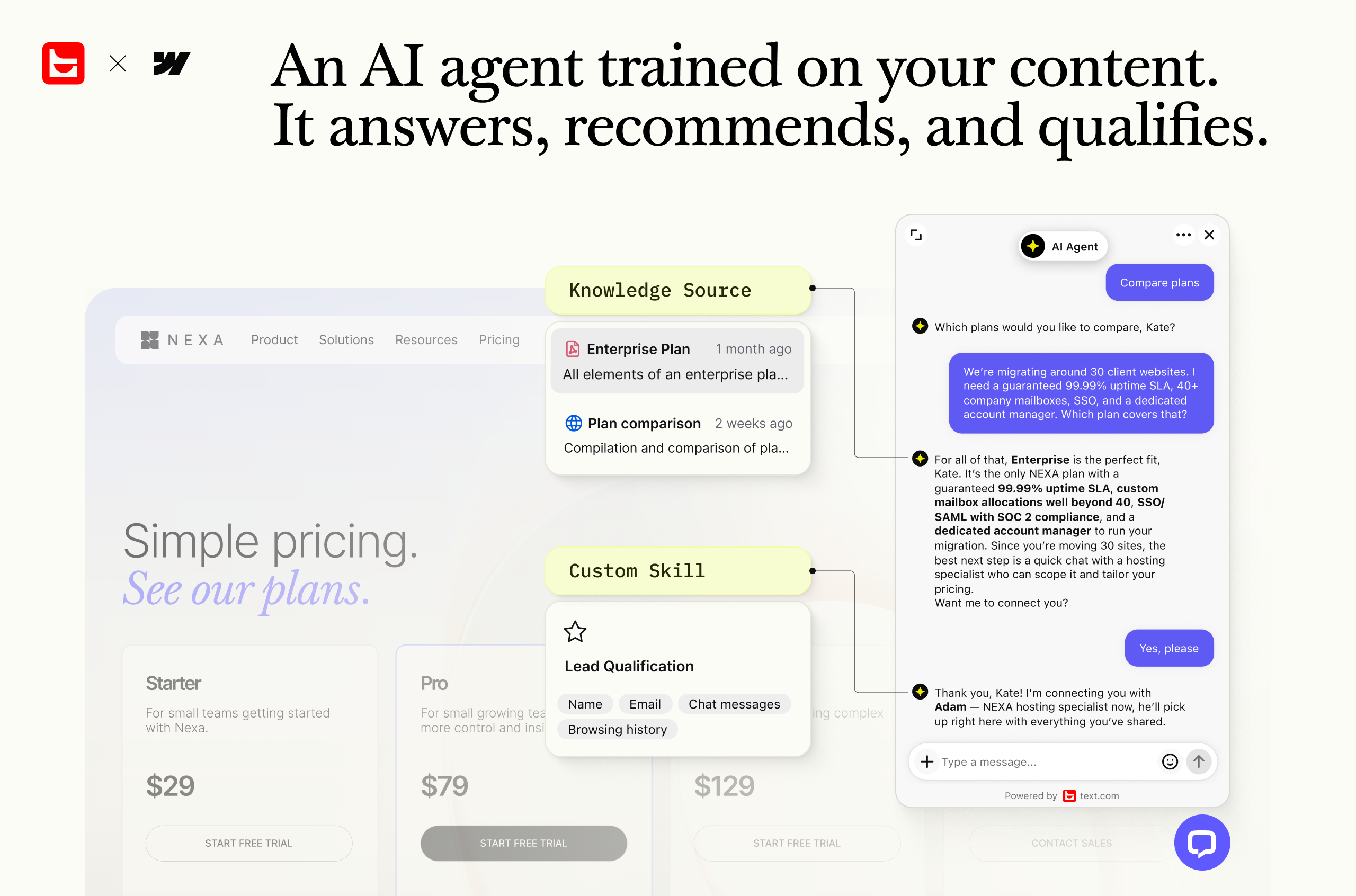 The caveat is that the Webflow listing is new and carries no reviews yet, so you're buying on the product rather than on other people's experience. Plans start at $19/month with a 14-day trial.
The flow starts in Text rather than in the Webflow Marketplace, which catches people out if they go hunting in the Designer first. You need a Text account and a Webflow account with permission to authorize apps on the site.
In the Text dashboard, open Settings → Website widgets.
Enter the URL where the widget should live, then click Continue.
Choose the Webflow installation method and click Add to Webflow.
Pick your site from the Select site to authorize list and click Authorize App. This is the permissions step, so read what it's asking for.
Click Add widget, or I'll do it later if someone else does your publishing.
Preview the widget in Webflow, then click Publish website.
Check the status reads Connected. If it hasn't updated, open your live site and send the widget a message — that handshake is what flips it.
Run it again for each site if you have more than one. Full instructions are here.
Nothing in this touches the custom code panel, and nothing appears anywhere until step 6. A widget that "isn't working" is almost always a site nobody published.
Other tools — Crisp, Tidio, and Intercom
Crisp's site advertises a free tier with two seats and unlimited conversations, the most generous of the four here. Chat, email and social land in one dashboard, and the free plan is a plan rather than a trial.
Tidio suits small sites wanting an AI chatbot without paying, though the free allowance is a one-time 50 Lyro conversations, which most stores burn through in a fortnight. Intercom makes sense for a team already paying for it elsewhere and very little sense as a first purchase, at roughly $0.99 per resolution.
Check the Marketplace listing before you assume any of them is an App rather than a snippet. Vendors move between the two.
Best practices once a live chat is on the site
Publish before you panic
Custom code doesn't run in the Designer or in preview. It runs on the published site. Every Webflow user loses ten minutes to this once.
Don't put it on every page
Site-wide head code loads the widget on your 404, your thank-you page, and the legal pages nobody has a question about. Page settings let you place it where support conversations actually start: pricing, checkout, contact.
Load it after the design
Webflow sites tend to arrive carrying Lottie files, scroll interactions and the kind of product layout everyone builds after looking at Apple's, all competing for the same main thread. Place the script before the closing body tag rather than in the head, so it doesn't block the page from parsing. Position isn't the whole story: a well-built widget loaded asynchronously will beat a heavy one that sits in the right place, so check what your vendor ships before you blame the placement.
Then check it on a phone. Webflow gives you responsive breakpoints and the widget won't always respect them. A widget that covers your mobile navigation is a usability bug wearing a support badge.
Match it to the build, quickly
Set the widget colors to your palette and write a greeting in your own voice. The default greeting ships on thousands of sites and reads like nobody's home.
Point it at your CMS
If you keep help articles in a Webflow CMS collection, you have most of a knowledge base already. The part that matters is publishing them as pages, because AI chat tools train by crawling URLs rather than by reading your collection. An article that exists only as a CMS item is invisible to them.
Publish them, point the tool at those URLs, and the repetitive questions start answering themselves.
Self-service is the cheapest support you will ever run, and the gap isn't close. 81% of customers try to solve a problem themselves before they contact anyone, per Harvard Business Review.
Every article that answers a question is a conversation nobody has to join, and the customers who would rather find it themselves get to.
Ask before they ask you
A widget that sits and waits gets ignored. Proactive messages fire on behavior: time on a pricing page, an item added to a cart then abandoned. They turn browsing into a conversation while the intent is still live.
The difference between waiting and asking is measurable. Visitors who take a proactive chat invitation are 6.3 times more likely to buy than visitors who never chat, by LiveChat's own figure.
That's also where the buying signals show up. Someone asking about delivery is closer to paying than someone who read three blog posts.
Decide what happens at 6 p.m.
90% of customers want a reply within ten minutes of sending a chat message, per HubSpot's research, and no team covers that by hand around the clock. State real hours on the widget, or let an AI Agent work overnight. Ours answers from your own help content and passes anything it can't close to the morning with a summary attached, so nobody starts the day cold. What breaks trust is an open chat window with nobody behind it.
If you're handing the site to a client
Designers and agencies have a second problem: whatever you install has to outlive you on the project.
An App authorized on the client's own workspace stays theirs. A snippet is worse in a quieter way — it lives in Site settings and transfers with the project, so the client inherits a script nobody documented, pointing at a vendor account that might still be billing you.
So before the site is ready to hand over, write down what's running, where it lives and who pays for it. Two lines in the handoff doc save an email eighteen months later that starts "sorry to bother you."
So which one
For a live chat tool that publishes a Marketplace App, install the App. Maintaining a script by hand buys you little the reviewed version doesn't already give you.
If the vendor has a Marketplace App, use it. If they don't, use custom code — and write the snippet into the handoff doc, because a widget nobody documented is how you lose one for eighteen months.
FAQ
Does Webflow have plugins?
No. There is no such thing as a Webflow plugin. The equivalents are Webflow Apps from the Marketplace and custom code you add in Site or Page settings, and people search for plugins because WordPress trained them to.
Do I need a paid plan to add live chat to Webflow?
For custom code, yes. Site-wide and page-level code require a paid Site plan or Workspace plan. Marketplace Apps install from your workspace instead.
Where should the chat script go?
Before the closing body tag, in Page settings for the pages that need it. The head is for things that must run before the page renders, and a chat widget isn't one of them.
Can I use Webflow Apps on an exported site?
No. Code export gives you static HTML, CSS and JavaScript with any embeds you added, and Apps stop working because they connect through Webflow. CMS content, forms, search and localization don't carry over either, so an export is a bigger event than it sounds. If it's on the roadmap, use custom code.
Will an app slow my Webflow site down?
Any third-party script adds weight. With an App you don't choose where it loads, so your levers are which pages it runs on and how heavy the tool is. With custom code you control placement too. Either way, re-check your own build after install rather than trusting a vendor's number.