
Tomasz Ziętek
Content Creator
Experienced content and SEO specialist working with SaaS businesses since 2016. After hours, he's cycling, cooking, traveling, or digging through record crates.
TL;DR: Webflow builds and hosts your site. It gives you nothing for answering the people standing on it, ready to buy. Chat catches the visitor in the moment, ticketing catches everything chat drops, and you need both wired to the same place.
If you're here about your own Webflow account instead (not your site's visitors) skip down to "Webflow account support" below. There's no phone number for that: any number you find online claiming to be Webflow support isn't official, and using it puts your account at risk.
Late on a Sunday, I was buying a ring on a Webflow site, hit an error at checkout, and found one route to a human: a contact form promising a reply "within two business days." I closed the tab. My girlfriend didn't get the ring.
Someone had spent weeks on that layout. It lost the sale to a form.
Two problems, one search box
Type “webflow customer service” into Google and you get two crowds. One needs to reach Webflow about their own account. The other runs a Webflow site and needs a way to answer customers on it. Those are separate problems: Webflow support for your account is mostly email-based, available Monday to Friday, and for most users, there’s no working phone, live chat, or built-in customer service system for the website itself.
The second problem is the expensive one. If your site gets product questions, order issues, or sales-blocking doubts and nothing answers them in real time, you lose conversions fast. Webflow pages can attract demand all day, but customer service on a Webflow-built site has to be assembled with separate tools.
The real decision is what to add to your site: live chat for immediate conversations, ticketing for structured follow-up, AI agents and help centers for scale, and the setup choices that fit your volume, team, and business model.
What silence costs
Baymard Institute puts the average documented cart abandonment rate at 70.22%, averaged across fifty separate studies. Not every one of those carts leaves over an unanswered question. But every unanswered question is in there somewhere, and it's the only line item on the list you can fix in an afternoon.
Your team reads email Monday to Friday. Your site takes questions every hour of the week. A question that lands Saturday morning sits until Monday, and the visitor bought elsewhere that afternoon.
Webflow is a design and hosting platform. It powers 0.8% of all websites and 1.2% of sites running a known CMS, and every one of those pages takes questions it can't answer.
Chat and ticketing do different jobs
Chat catches the person on the page right now, card out. Forrester's data has site visitors who use web chat converting at 2.8x those who don't — which is less a fact about chat than about who bothers to open it.
Ticketing catches everything chat drops: the refund three days later, the shipment that needs checking, the issue nobody can fix in ninety seconds.
Run one without the other and something falls through. Chat alone drops what can't be closed live. Ticketing alone loses the sale overnight. What you want is one workspace where chat, AI, and tickets share the same history.
Setting up chat
Decide your hours first. Live chat with nobody behind it is a contact form with extra steps. Pick the hours your team can actually staff before you install anything, write them on the widget, and note the timezone. A visitor who knows you're offline until Monday will leave an address.
Choose where it appears. Don't run it site-wide out of habit. Put chat on the pages where people hesitate: pricing, checkout, shipping, anything with a form. Designers and agencies selling services should weigh it toward pricing, since those are qualifying questions. Keep it off your blog — nobody reading your tutorials wants a bubble.
Install the widget. You have two routes, and the choice matters more than the vendor does.
The custom code route means pasting the vendor's script into your site settings and publishing. It works until someone republishes without it. Ad blockers also block some widgets, and a blocked widget appears as silence rather than an error, so test in a clean browser.
The marketplace app route installs and maintains the code for you. It's the better call if anyone besides you can touch the site — and if you're handing off to a client, it's the only sane option, because clients never maintain a snippet. Your company name is on that widget either way.
Test it as a visitor. Open the page in a private window, not the Designer. Click the bubble, send yourself a message, and watch where it lands. If nothing arrives, you've just learned what happened to every message before yours. Check your mobile too, where the widget covers more layout than you think.
Setting up ticketing
Send the form to a help desk, not an inbox. This is the step people skip. A Webflow form pointed at a shared inbox gives you ticketing in name only: email with extra hope. Route submissions into a help desk and every request gets an ID, an owner, and a status.
Capture the details automatically. A form gives you a name and a paragraph. A ticket should carry the page they were on, what they clicked, and what happened before they gave up. Ask for order number and account email while you're at it — two fields save a round trip.
Give every ticket an owner. Unassigned tickets are how things rot. Route by topic, tag the issue type, and make sure everyone who answers is in the same workspace, or two people will reply to the same customer.
Set a response target you can hit. Promise 24 hours and hit it rather than promising four and missing. Publish the number where people submit, and repeat it in the confirmation.
Track what keeps coming back. Log volume by topic and review the top five subjects monthly. Repeat questions are your customers telling you what to publish next — most of them won't ask twice, they'll just leave. Read five closed tickets a week; you learn more from the third repeat than from the first. And decide who watches social, because your reply there is public, so write it like everyone's reading.
Cut the tickets before they open
An AI agent on the front. Most support requests are the same twenty questions in different words. An agent trained on your own help articles answers them at 3 a.m. on a Sunday, in whatever language the visitor is using, and routes the rest to your team with the context attached.
A help center behind it. The agent is only as good as what you feed it. Build your twenty most common answers as articles in the Webflow CMS — a collection, a template page, a search field. Short tutorials with screenshots beat long paragraphs.
Those articles do double duty: customers search them, and the agent answers from them. Cross-link them, because internal links are how someone finds the second thing they need, and dropping links into the widget's first message saves a search.
If you're mid-migration from Shopify or WordPress, bring the old help content across. A migration is the cheapest moment to fix it.
The Text integration
Here's the tool that connects the live chat, help desk, and AI agent. Text's AI customer service app sits in the Webflow marketplace. Full disclosure, it's ours.
The part worth caring about: it reads what visitors do on your site — the pages they open, where they stall — so a conversation starts with context instead of waiting for someone to click a bubble. One workspace covers the AI agent, live chat, help desk, and shared inbox, so chat and ticketing come wired together rather than stitched from two platforms. You authorize the app, pick the site, and publish. No snippet to lose.
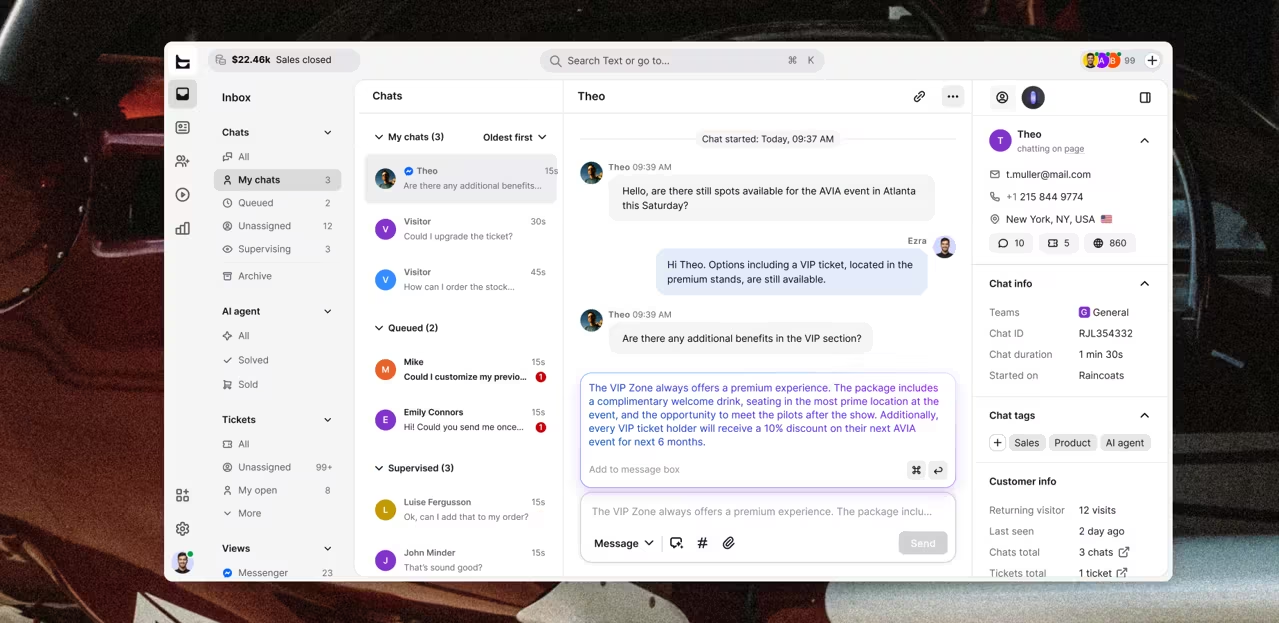 Caveat, and it's a real one: pricing is per seat, like nearly everything in this category; AI is metered per resolution, and a marketplace app means your support stack and your site are coupled in a way a raw snippet isn't. If you're a one-person site fielding a handful of questions a month, none of that is worth paying for, yet — see the last section.
When Webflow or a third party is the problem
Different problem, same search term. This half is about your account, your builder, and your bill.
Self-service isn't optional here. Webflow's support portal pushes you through documentation, courses, and community threads before it takes a request. In effect, email support is gated behind self-service. Start in the Help Center, which covers hosting, the CMS, the Designer, and billing — a support reply will often just quote the article back to you.
Webflow University is the learning hub, and it's free: courses, video tutorials, and learning paths from beginner to advanced. It's genuinely good, which is rare for vendor training. If your problem is "I don't know how to build this," that's the address, not the queue.
The community forum is where custom code threads live, since the support team can't take them. Staff read it, and so do designers who hit your exact bug. It's slower than a ticket and frequently smarter, because someone there already shipped what you're building. For a broken third-party widget, though, start with the company that built it.
If you're blocked and shipping tomorrow, hiring a Webflow expert for two hours costs less than a week of a broken checkout.
How to contact Webflow support and open a support request
Log in, then submit a request from your account. Give them the site URL, the exact page, what you clicked, what you expected, and what happened instead. Note your browser, and say whether the whole site is down or one page is broken — scope changes how fast it moves. A screen recording answers questions you didn't know to ask.
What the Webflow support team covers
Email, Monday to Friday, 6 a.m. to 6 p.m. PT. They handle account access, billing, and troubleshooting Webflow's own tools. Custom code and third-party integrations fall outside that scope, which is why your chat widget is your problem.
There is no phone line
You'll find 1-415-964-0555 listed as a Webflow customer service number on aggregator sites. It's the corporate office line and won't get you support. Addresses like contact@webflow.com circulate the same way, sourced from directories rather than from Webflow. To contact Webflow Support, you're writing an email.
Live chat isn't offered to most users either — the chat window on webflow.com is sales, not support. Enterprise customers get scheduled phone support with a technical specialist, by appointment, in the same weekday hours. Everyone else writes in.
The published target is 24 to 48 hours, and real times vary with plan and complexity. A billing question moves fast because there's nothing to reproduce. A rendering bug on one browser does not.
Which setup fits you
No single setup fits every site, and support platforms nearly all price per seat, so count your team before you open anyone's pricing page.
Under twenty questions a month: don't buy anything yet. Point the form at a free help desk tier and skip chat until someone can staff it. A widget nobody answers is worse than no widget.
A content site: help center first, ticketing second. Build the articles before you buy the software — that order is cheaper, and it's also the order the AI needs.
Ecommerce: chat on checkout, AI agent behind it, ticketing for everything else. That's where the abandonment number lives, and where I closed the tab.
One thing, regardless of size: every widget costs you something at page load. Run a Lighthouse pass before and after install, check it on mobile, and if performance drops more than a few points, ask the vendor why.
Before you launch
Send yourself one message through chat and one through the form, then go and find both.
Someone else sold me that ring on Sunday, and the beautiful site never knew it lost. Nobody needed a better designer to fix that. The route to a human was the whole problem, and it had been broken long enough that nobody was left to notice.
Webflow customer service FAQ
Does Webflow have a customer service phone number?
Not for standard plans. The 415 number listed on aggregator sites is the corporate office. Enterprise customers can book scheduled phone support with a technical specialist; everyone else uses email.
Does Webflow offer live chat support?
No. The chat window on webflow.com is for sales. Support runs by email, Monday to Friday, 6 a.m. to 6 p.m. PT.
How long does Webflow support take to reply?
The published target is 24 to 48 hours. Billing questions land at the fast end because there's nothing to reproduce; browser-specific rendering bugs land at the slow end.
Can I add live chat to a Webflow site?
Yes, either by pasting a vendor script into your site's custom code settings or by installing a marketplace app. The app route survives republishing and client handoffs; the snippet route doesn't always.
Does Webflow have a built-in help desk or ticketing system?
No. Webflow forms collect submissions, but turning those into tickets with owners and statuses requires a separate help desk.
Will Webflow support help with my chat widget?
No. Custom code and third-party integrations sit outside their scope. Take widget problems to the vendor who built it.