
License history
Find and use the license history in the Partner app to track license status, subscription changes, and payment errors for your clients' licenses.
 Sylwia KocurUpdated 2 min read
The license history in the Partner app lets you see and track the most important events on your clients' licenses. Check when a license was created, how its subscription changed, and which payment errors occurred. Open it from the Partner app dashboard or from the Solution section.
What is the license history?
The license history is a log in the Partner app that records the most important events on your clients' licenses. It allows you to track a license from creation through subscription changes and payment errors, so you can spot and fix problems that keep clients from using Text to the fullest.
It is part of the Solution program, where you set up licenses for your clients.
What events does the license history track?
There are several events that you can track.
License status
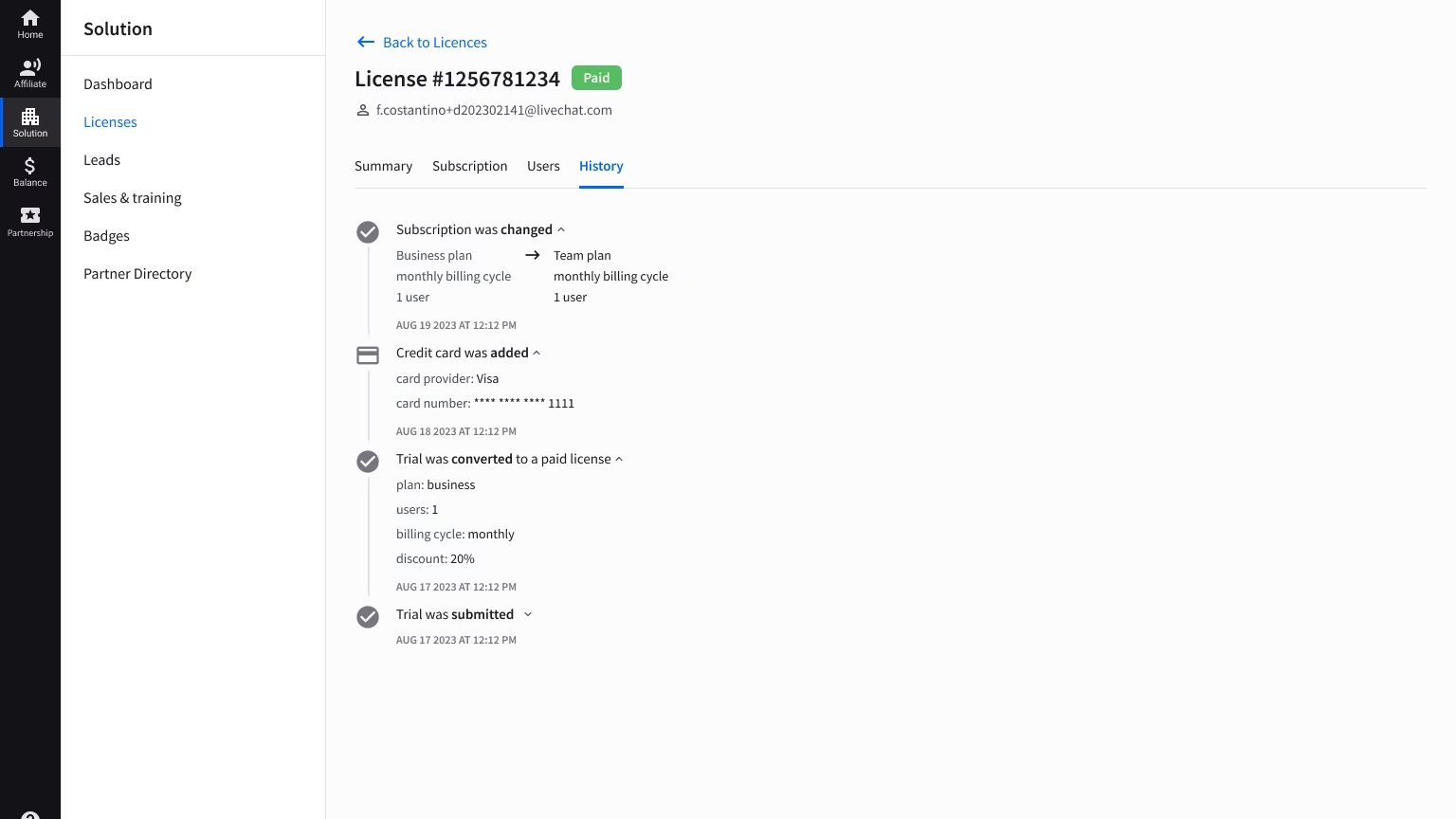
The license history shows when the license was created, when the trial turned into a paid subscription, and when it expired.
Subscription-related events
The Partner app allows you to track any changes made to the subscription during its lifetime, including:
Changing the number of users
Switching the pricing plan or billing cycle
Upgrading the credit card
Closing or reactivating the subscription
Tracking errors
The license history shows various payment errors and issues that might make subscriptions not work correctly. Thanks to that, you'll be able to spot and fix problems that keep your clients from using Text to the fullest.
Here's what it looks like in the Partner app.
How do you find the license history?
There are several ways to find the license history in the Partner app.
From the Partner app dashboard
Open the Partner app dashboard.
Click one of the report columns.
Select the license.
Click the History tab.
Solution section
Go to Solution > Licenses.
Select the license.
Click the History tab.