
Contacts and Real-time customers
See real-time website visitors and organized customer profiles in one hub. Track chats, visits, tickets, and contacts for better support and engagement.
 Wiktoria SmołaUpdated 8 min read
The Customers section is divided into Real-time customers, Contacts and Campaigns, making it easy to navigate and quickly access the information you need.
Real-time
Use Real-time data to check the current traffic on your page. You can see who is browsing, waiting for a reply, chatting, or being supervised. The view updates continuously, allowing you to monitor activity on your page as it happens.
What you can see in the Real-time section
We prepared seven pre-defined segments, each showing visitors involved in specific activities:
All customers - displays all visitors currently on your website.
Chatting - lists visitors who are currently in an active chat with agents.
Supervised - displays chats that you are currently supervising.
Queued - lists all chats that are waiting in the queue to be picked up.
Waiting for reply - displays chats where the visitor is waiting for a response from an agent.
Invited - lists visitors who were invited to chat via a campaign but haven't responded yet.
Browsing - displays visitors who are on your website but haven't been invited to chat or haven't initiated a chat.
Additionally, each segment includes details such as the customer’s name and email address, country, device type, and other relevant information.
You can engage visitors directly using the Start chat button, or support your team by quietly joining live conversations with the Supervise chat button. This allows you to provide invisible guidance to agents when needed, which is useful for monitoring performance or training new team members.
The Pick from queue button lets agents manually choose chats waiting in the queue, which is helpful when they want to engage with specific customers.
Take action on a customer in Real-time
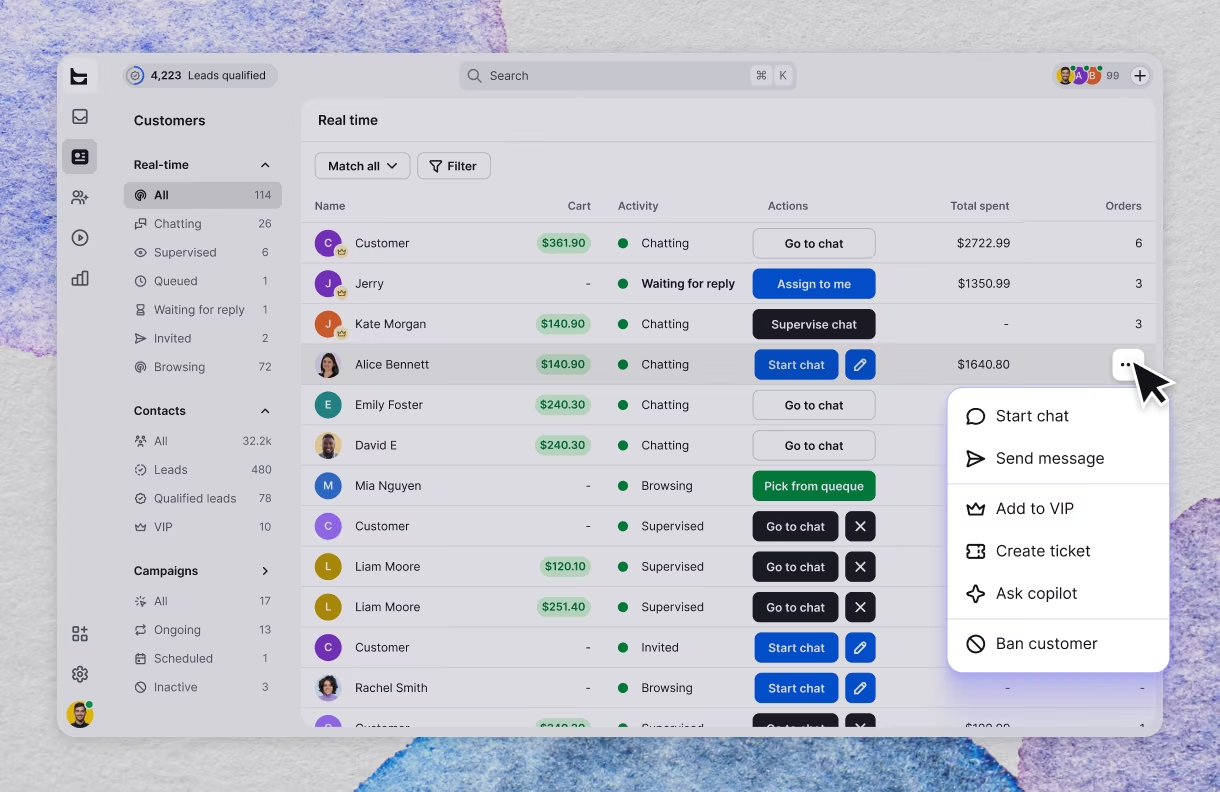
Hover over any customer in the list to see the action buttons for that row. Select the three dots (...) next to it to open the action menu. The available actions depend on the customer's current status, so you only see options that make sense at that moment.
Chat actions
Start chat - begin a conversation with a visitor who hasn't started a chat yet.
Send message - send a custom message to a visitor who hasn't started a chat yet.
Go to chat - open the customer's conversation.
View chat - check the details of an unassigned or queued chat.
Supervise chat - quietly join a conversation handled by another agent. This allows you to provide invisible guidance when needed, which is useful for monitoring performance or training new team members.
Pick from queue - manually choose a chat that is waiting in the queue, which is helpful when you want to engage with specific customers.
Assign to me - take over an unassigned chat.
Customer actions
Add to VIP / Remove from VIP - mark the customer as a VIP, or remove the status. Learn more in How to Add and Find VIP Customers in Text.
Create ticket - create a ticket for the customer. This action is available only when the customer has an email address. The customer’s email address is prefilled in the ticket and saved to their profile.
Ask Copilot - start a conversation with Copilot about this customer.
Ban customer - block the customer from contacting you.
Why you might not see any visitors
No one is currently browsing your website
The website widget is not installed or isn't functioning properly
Setting filters
Filters enable you to target specific visitor groups based on predefined criteria. You can apply multiple filters and choose whether visitors must match all conditions or any of them.
You can filter visitors by activity, location, contact details, and visit history to quickly focus on the users who matter most, for example, those who have visited your site multiple times from a specific country.
Viewing customer details
When you click on a customer, you can view detailed information, including:
Name and email address
Location and timezone
Total number of visits
Chat history
Support tickets
Pages they visited
Visit details such as device, referring page, visit duration, and IP address
Contacts
The Customer list is a lightweight CRM built into Text. It brings together customer information from all your connected sources, such as chat, tickets, website activity, and campaigns, so you can quickly understand who your customers are and how they interact with your business.
The Customer list helps support, sales, and operations teams work more efficiently by providing a single place to view customer profiles, key attributes, and interaction history.
This section is divided into 3 pre-defined views to help you get started:
All - Every tracked customer in your list of customers.
Leads - Customers with at least an email address or phone number.
Last 30 days - Customers with recent chats, visits, tickets, or campaign interactions.
Take action on a customer in Contacts
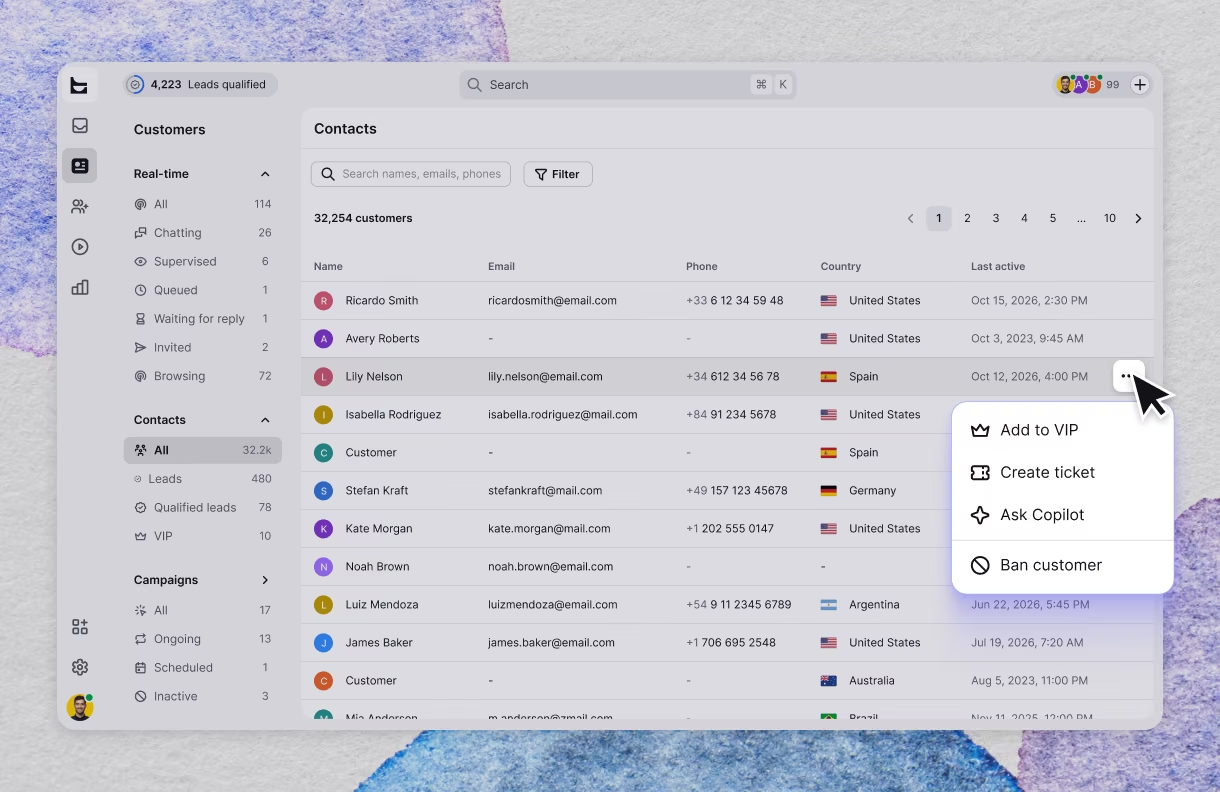
You can act on a customer straight from the list, without opening their profile. Hover over a customer's row and select the three dots (...) to open the action menu:
Add to VIP / Remove from VIP - mark the customer as a VIP, or remove the status.
Create ticket - create a ticket for the customer. This action is available only when the customer has an email address. The customer’s email address is prefilled in the ticket and saved to their profile.
Ask Copilot - start a conversation with Copilot about this customer.
Ban customer - block the customer from contacting you.
Campaigns
The Campaigns section lets you create automated messages—such as pop-ups, banners, or chat greetings—to engage visitors at the right moment.
For setup instructions, see how to create and manage Campaigns.
How to use the Customer list
1. Access the Customer list - Open the Customers tab in the main sidebar of Text.
2. See your Contacts - In the subnavigation, select the desired section (All, Leads, or Last 30 days).
3. Browse your customer data - A paginated table displays customers with sorting and filtering options.
4. Filter or sort the list - Choose attributes (e.g., Email, Last activity) to narrow down results.
5. View a customer profile - Click a customer to open the preview sidebar.
6. Explore conversations and activity - Review previous chats and tickets to gain a deeper understanding of customer behavior and needs.
View a unified list of all your customers
See all tracked customers in one place, including their:
Name
Email
Phone number
Country
Last activity date
Total chats, Total tickets, and Total visits
Filter and sort customers
Quickly find the right customers using filters based on customer data attributes (e.g., email address, last activity, phone number, etc.). You can also sort by any visible column.
Review customer profiles
Select any customer to open a right-side profile panel showing:
Unified customer profile
Chat history
Support tickets
Total visits
Contact creation date
Last visit info, including the IP address, visit duration, device used, and referring page
Why the Customers section matters
Unifies fragmented data
Many teams struggle with information scattered across various platforms, including email, chat products, website analytics, and ticketing systems. The Customers section consolidates this information in one place, reducing context switching and speeding up service.
Gives access to historical insights
See not only what a customer is doing now, but also past activities, like previous chats, visits, and engagement patterns. This will help you understand your customers better.
Helps your team provide faster support and deliver a more personalized experience
Structured profiles help your team quickly understand:
What the customer viewed
How often did they return
What issues have they raised
Which campaigns have they interacted with
Who is it for
Support teams
Easily review past chats and ticket interactions to deliver faster, more personalized assistance.
Sales teams
Filter and segment customers based on behavior or engagement to identify high-value opportunities.
Marketing and operations
Access consolidated customer data to power segmentation, campaigns, and actionable insights.
What's next?
Now that you know how to monitor visitors and manage customer activity in Text, you can continue improving your workflow with these features:
Learn how to create automated messages and proactive engagement flows in Campaigns.
Organize and quickly find conversations by setting up custom Chat views based on filters such as teams, tags, or assigned agents.
Automatically direct incoming chats to the right teams using Chat routing rules to improve response times and workload distribution.