
How to pay for your customers’ licenses
Pay for your customers’ licenses in the Partner app: pick a plan, seats, and billing cycle from the Subscription tab. See the steps and get started.
 Sylwia KocurUpdated 2 min read
To pay for your customers’ licenses, open the client’s license in the Partner app and set up their subscription in the Subscription tab. You choose the plan, the number of seats, and the billing cycle.
Once you create a customer’s license, you can access their subscription section right away from the Clients view.
Before you begin
Create the client’s license first. If you haven’t yet, follow the steps in Setting up licenses for your customers.
When you create a client, you decide who manages the subscription. Choose You to pay for the license yourself and get your partner discount. Choose Your client if the client pays directly and you earn a recurring commission instead. This article covers the first option.
How do you pay for a client’s license?
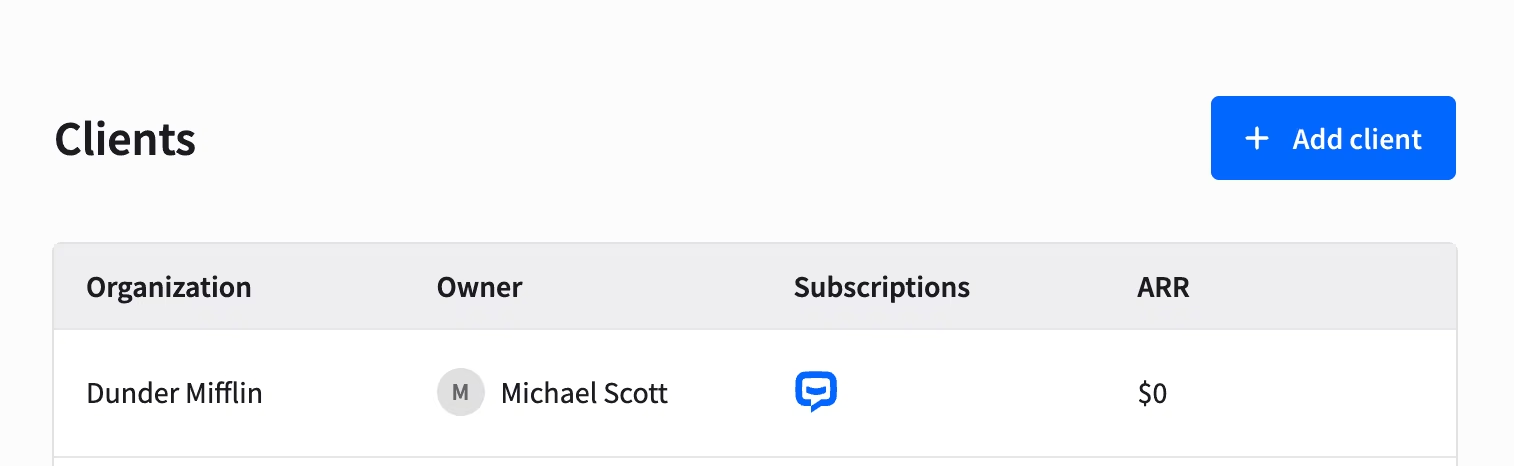
Go to Solution > Clients, and select the organization from the list.
Navigate to Licenses and click the license for which subscription you want to edit.
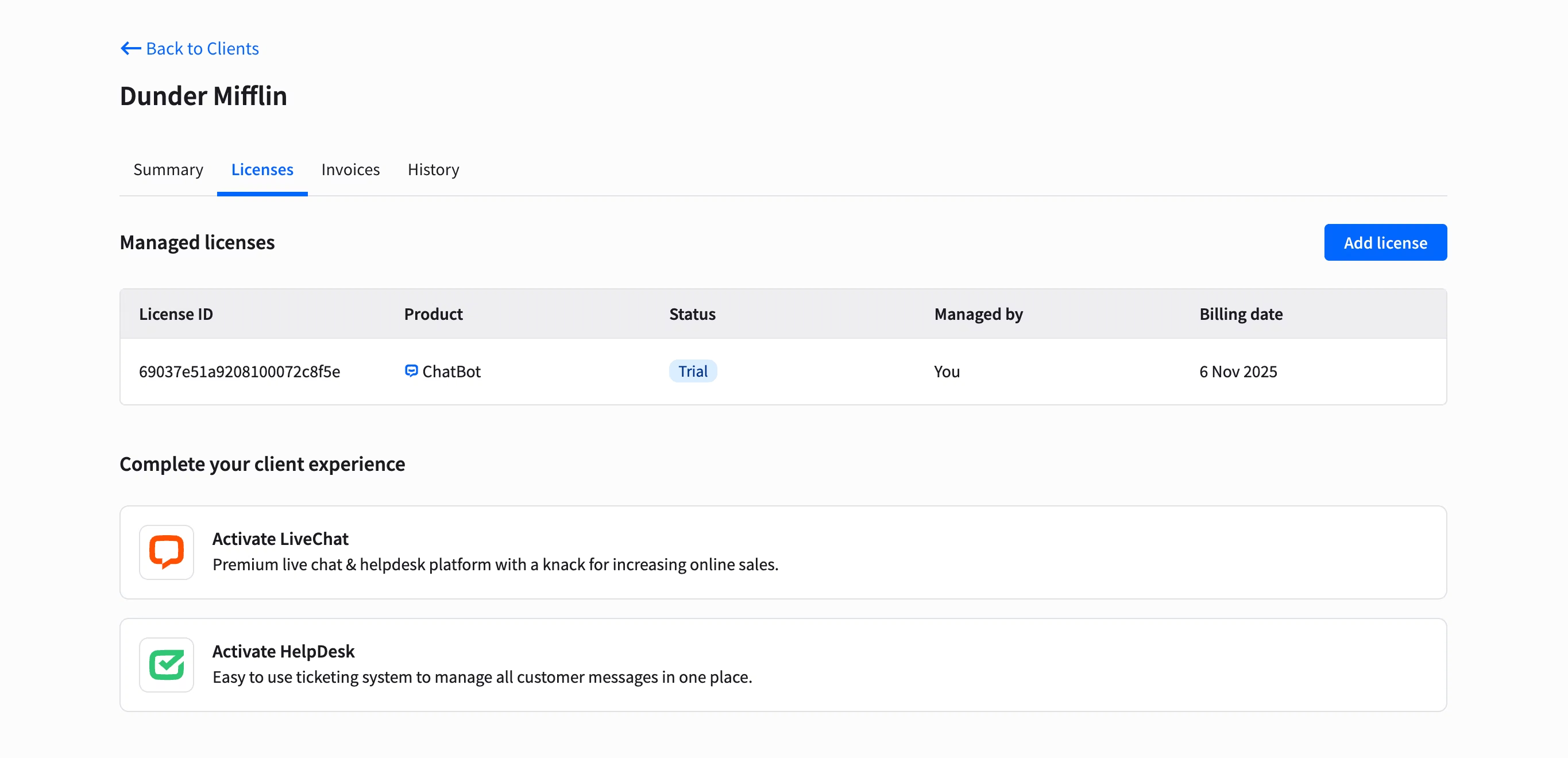
Open the Subscription tab. Inside the license view, you’ll find the Subscription tab, where you can configure this client’s subscription.
Choose the plan, number of seats, and billing cycle for the client. Each option is explained in the next section.
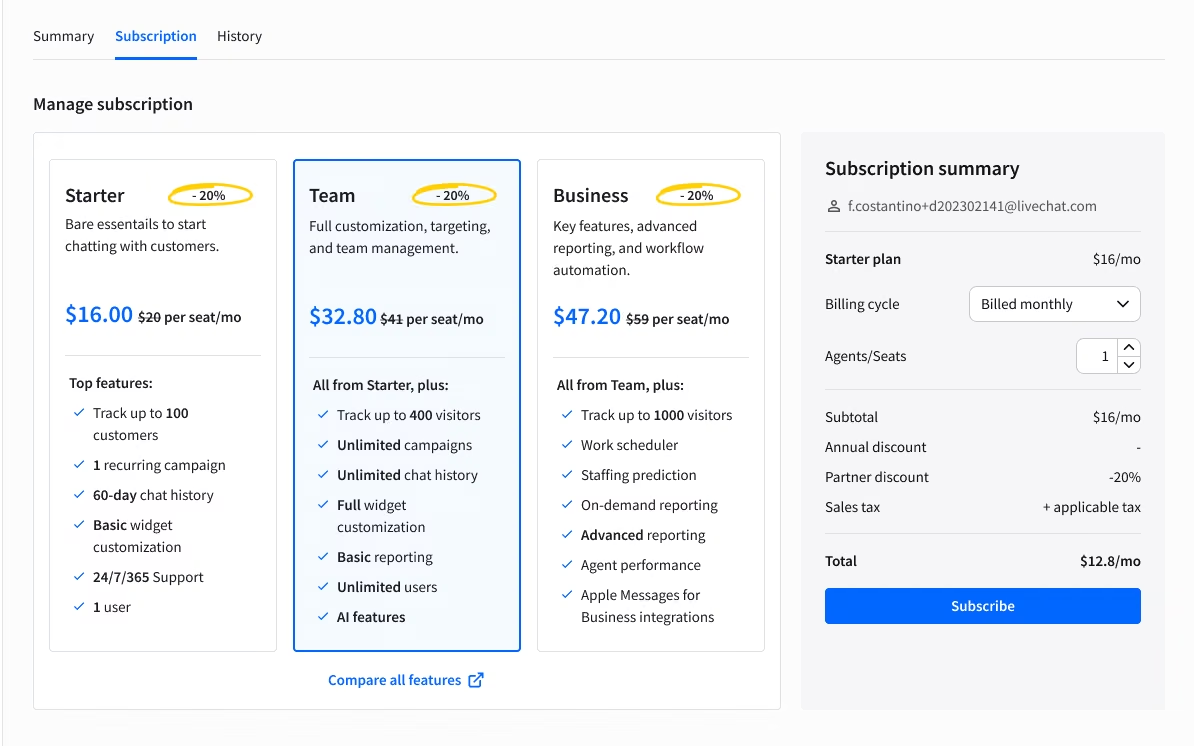
What do you need to decide when you set up a paid plan?
When setting the paid version up, you need to decide on the following:
Plan: What plan will your customers have?
Seats: How many seats will you buy for them?
Billing cycle: The billing cycle: monthly or annual.
Do you have to pay for a license right away?
No. Subscribing for a paid plan straight away is not obligatory. Each account you create comes with a trial and you can access its billing section anytime by clicking License ID on the list of licenses you’ve created.