
Partner app overview
Learn what’s in the Partner app: affiliate links, client accounts, balance, and more. See what each section does and where to start as a Text partner.
 Sylwia KocurUpdated 3 min read
The Partner app is where you manage links, accounts, and earnings across the Partner Program. Whether you’re an affiliate partner, a solution partner, or both, you get one login and five sections: Affiliate, Solution, Developer, Balance, and Partnerships.
What is the Partner app?
The Partner app is a dashboard that brings every part of the Text Partner Program into one login. It allows you to get affiliate links, set up client accounts, join the Developer program, track your earnings, and request withdrawals. Affiliate partners, solution partners, and partners in both programs all use the same app.
How do you get access to the Partner app?
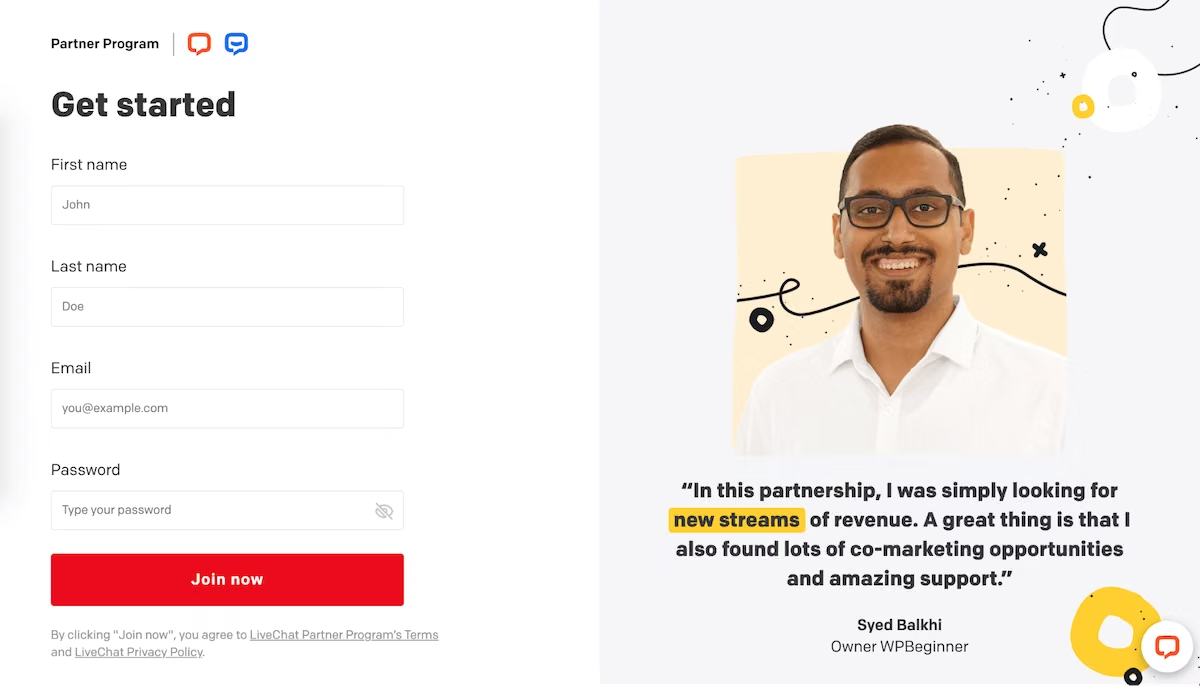
Click Become our partner on the Text partners page.
Fill in the sign-up form.
You get instant access to the Partner app, with no approval wait for the base account. Joining is free, with no upfront fees or mandatory sales quotas.
The Affiliate section is ready to use as soon as you sign up. For the Solution program, you need to be accepted before you can use benefits such as demo accounts and the partner directory.
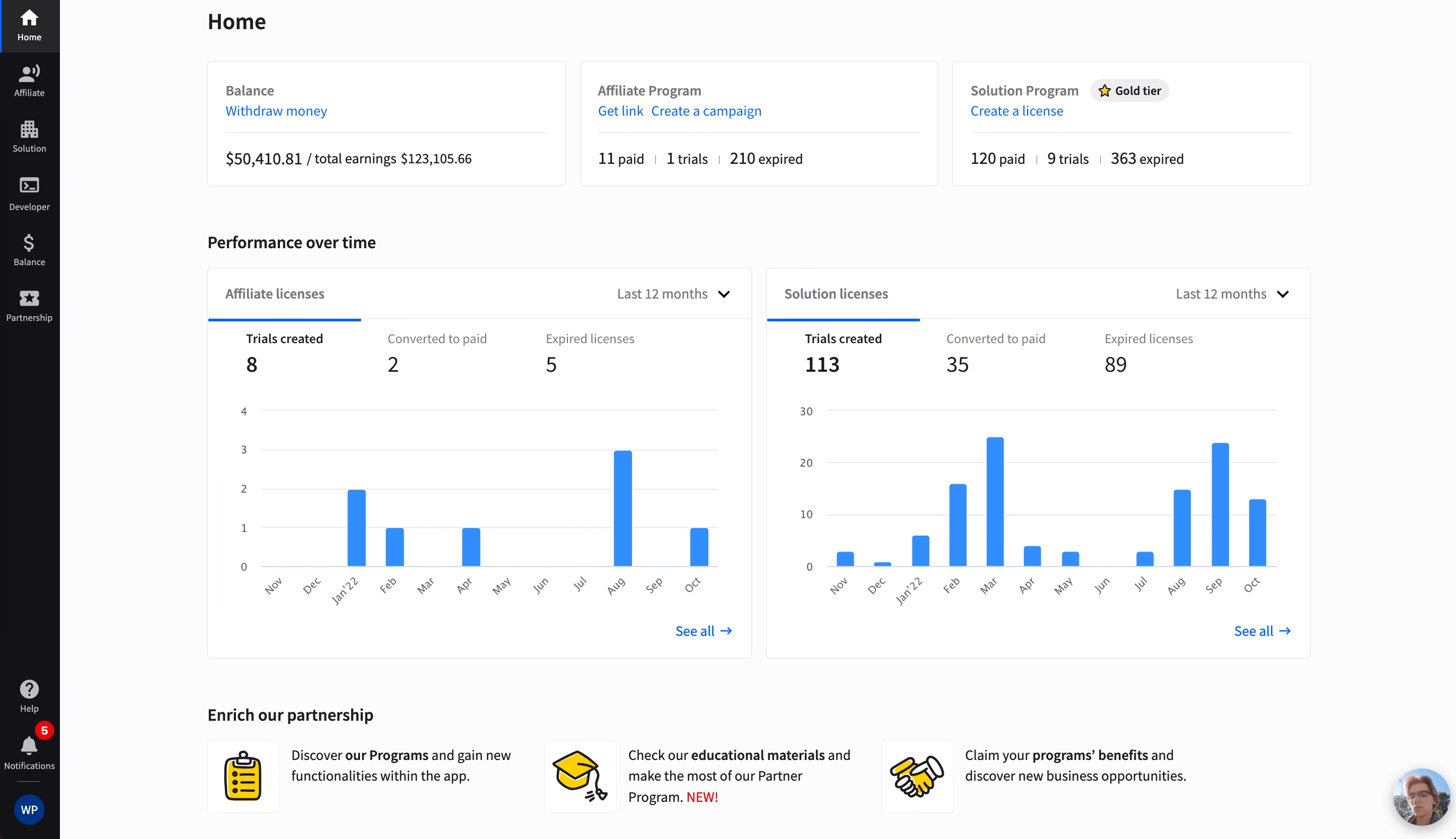
What’s on the Partner app Home screen?
Home is the landing screen you see after you log in. It shows a performance snapshot and links out to every other section. To get started smoothly, click Let’s get started to take a quick tutorial, or browse the sections on your own.
What can you do in each Partner app section?
Each section covers a different part of the Partner Program, so you only need the ones that match how you work with Text.
Affiliate
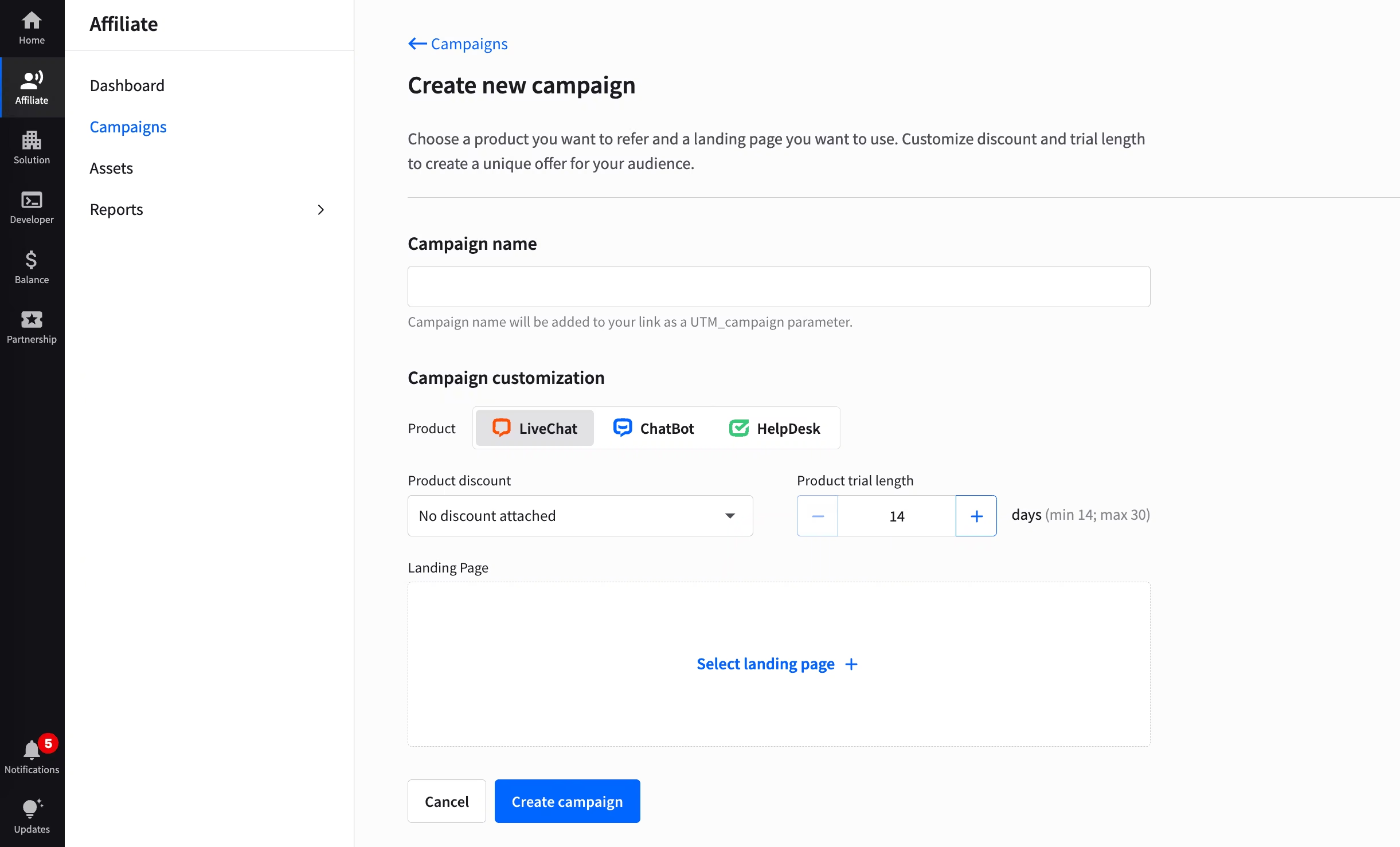
Use this section to refer Text products to your audience. Inside, you’ll find your affiliate links (one for each product, plus a Second Tier link), a campaign builder, marketing resources, and your performance. Marketing resources include promo graphics and text assets.
The most important part of the Affiliate section is the Campaigns tab. It allows you to create custom campaigns and measure their success. Each campaign has its own tracking link, and you can see clicks, trials, and conversions for each one.
Solution
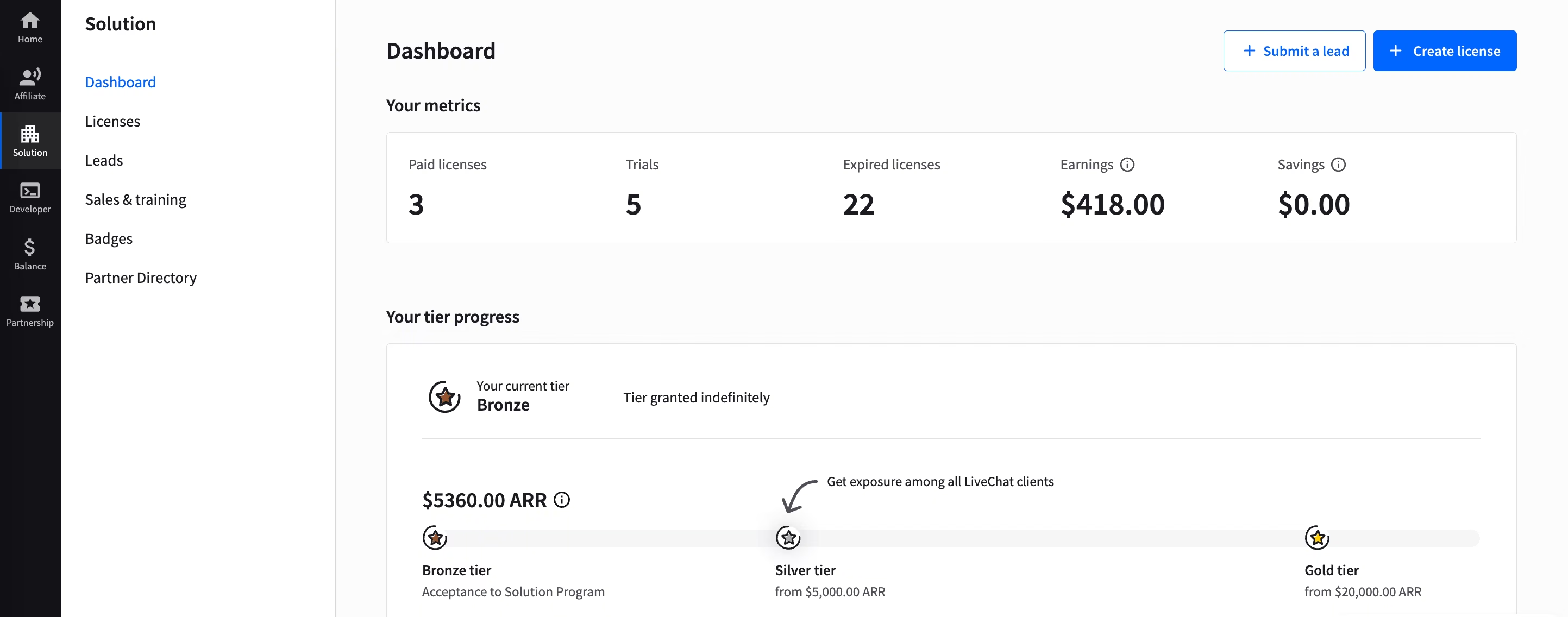
Use this section to set up new trial accounts, customize some of their parameters, and track the performance of accounts you’ve already created. It also includes sales resources for your demos and training materials for you and your customers.
When you add a client, you choose the billing model. If the client pays directly, you earn a recurring commission. If you handle payments for the client, you get discounts instead.
Balance
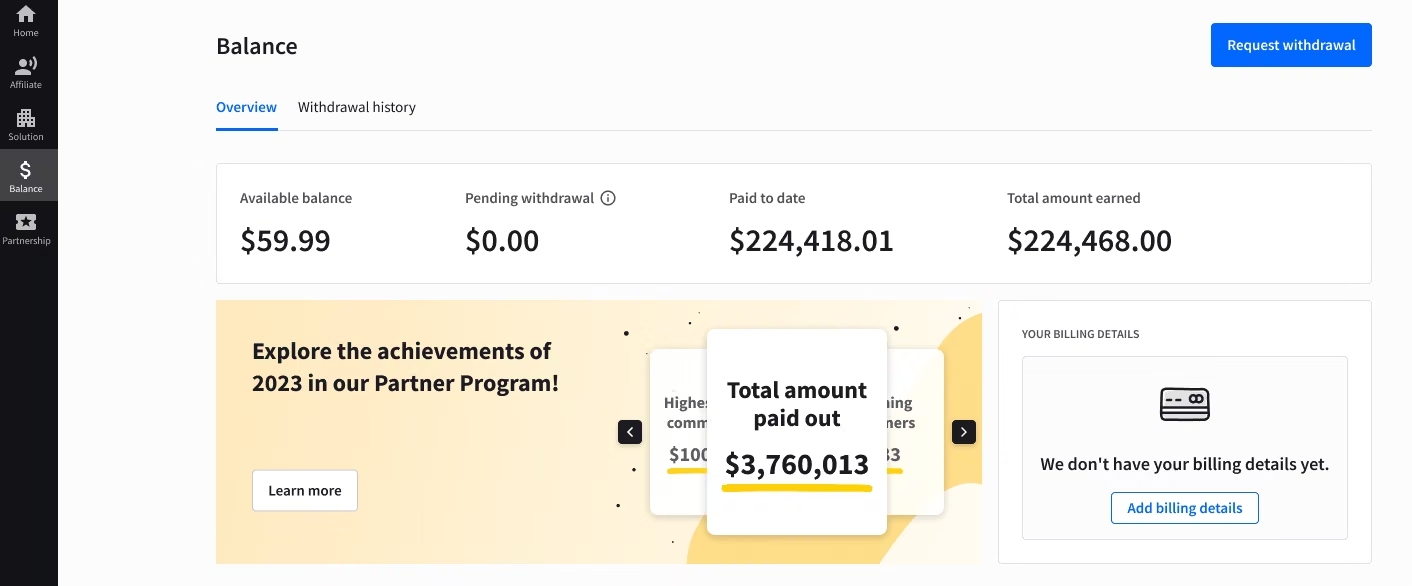
Use this section to see how much you have earned and request a withdrawal.
Partnerships
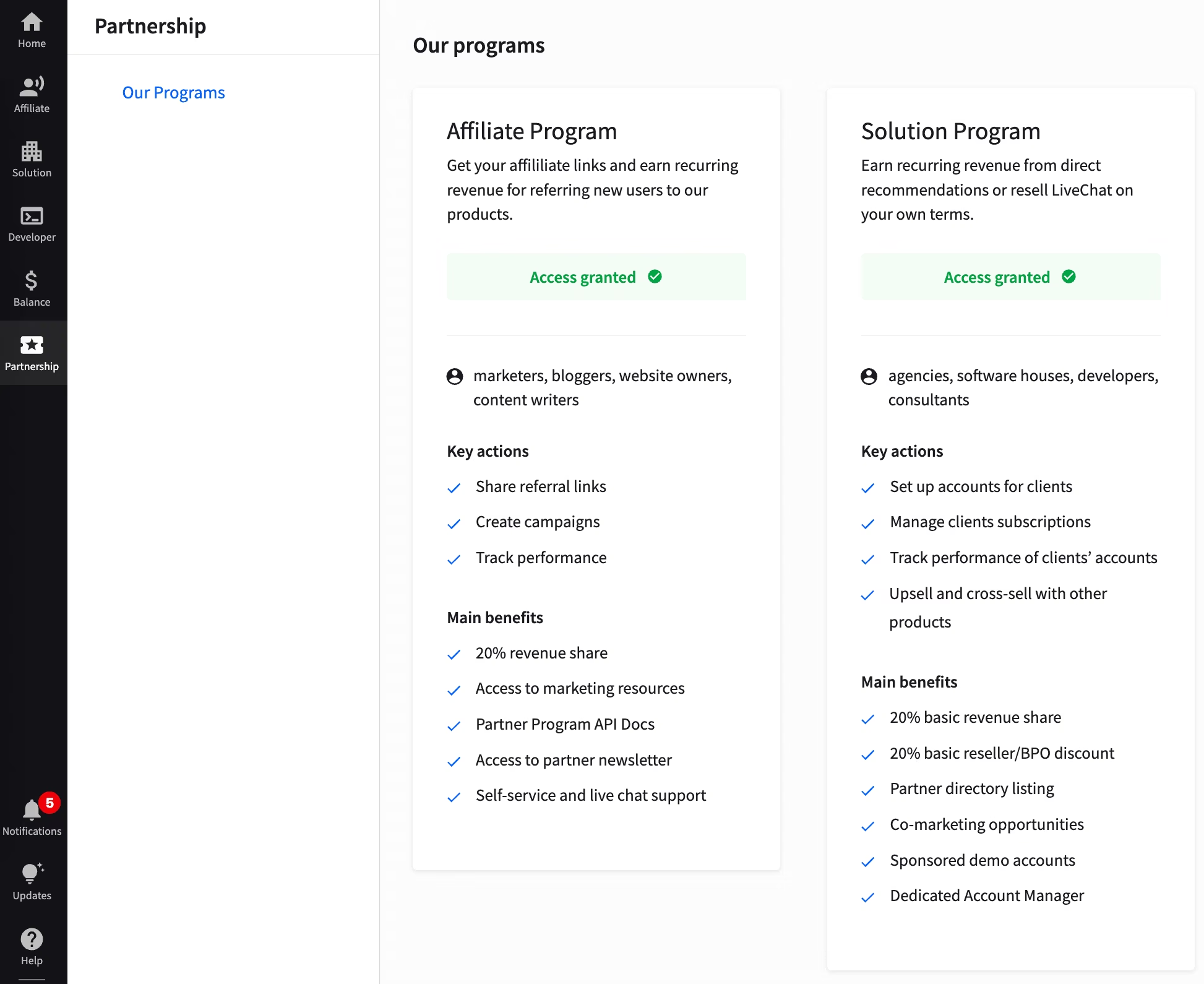
Use this section to learn the difference between our programs and read about the benefits they give you. You can also request a listing for your company on the Marketplace, which makes it visible to 30,000+ Text customers.
Frequently asked questions
Do you need approval to use the Partner app?
No. You get instant access after you sign up, with no approval wait for the base account. Affiliate partners can start promoting right away. The Solution program works differently: you need to be accepted into it before you can use Solution benefits such as demo accounts and the partner directory.
Can you join more than one program with the same login?
Yes. One Partner app login covers every program. You can promote Text as an affiliate, add clients as a solution partner, and join the Developer program to build apps and tools, all from the same account. Use the Partnerships section to compare the programs before you decide.
How do you withdraw your earnings?
Open the Balance section, check how much you’ve earned, and request a withdrawal. Earnings become available on request once you reach the $50 minimum. Check your balance first to see what’s ready to withdraw, then submit your request from the same section.