
How to add new users to the license
Learn how to add users to a client license in the Partner app, assign Administrator or Agent roles, and resend invitations. Invite your client's team today.
 Sylwia KocurUpdated 2 min read
Once you create a license for your client, add users so they can start using it. In the Partner app, you can add users to a license while creating it, from the license details, or from the Users tab, and Text sends each person an invitation to join.
Before you begin
Add the people who will use the license, such as agents or employees. You can also create an account for yourself, so you can set up the license and help your client whenever they need it.
Assign each new user one of two roles:
Administrator - They have access to almost all the features and settings, other than payments.
Agent - This role is mostly focused on chatting with clients.
To see what each role can do, read about roles in Text, roles in LiveChat, roles in ChatBot, and roles in HelpDesk.
How do you add users to a license?
You can add users in three ways. Choose the one that matches where you are in the process.
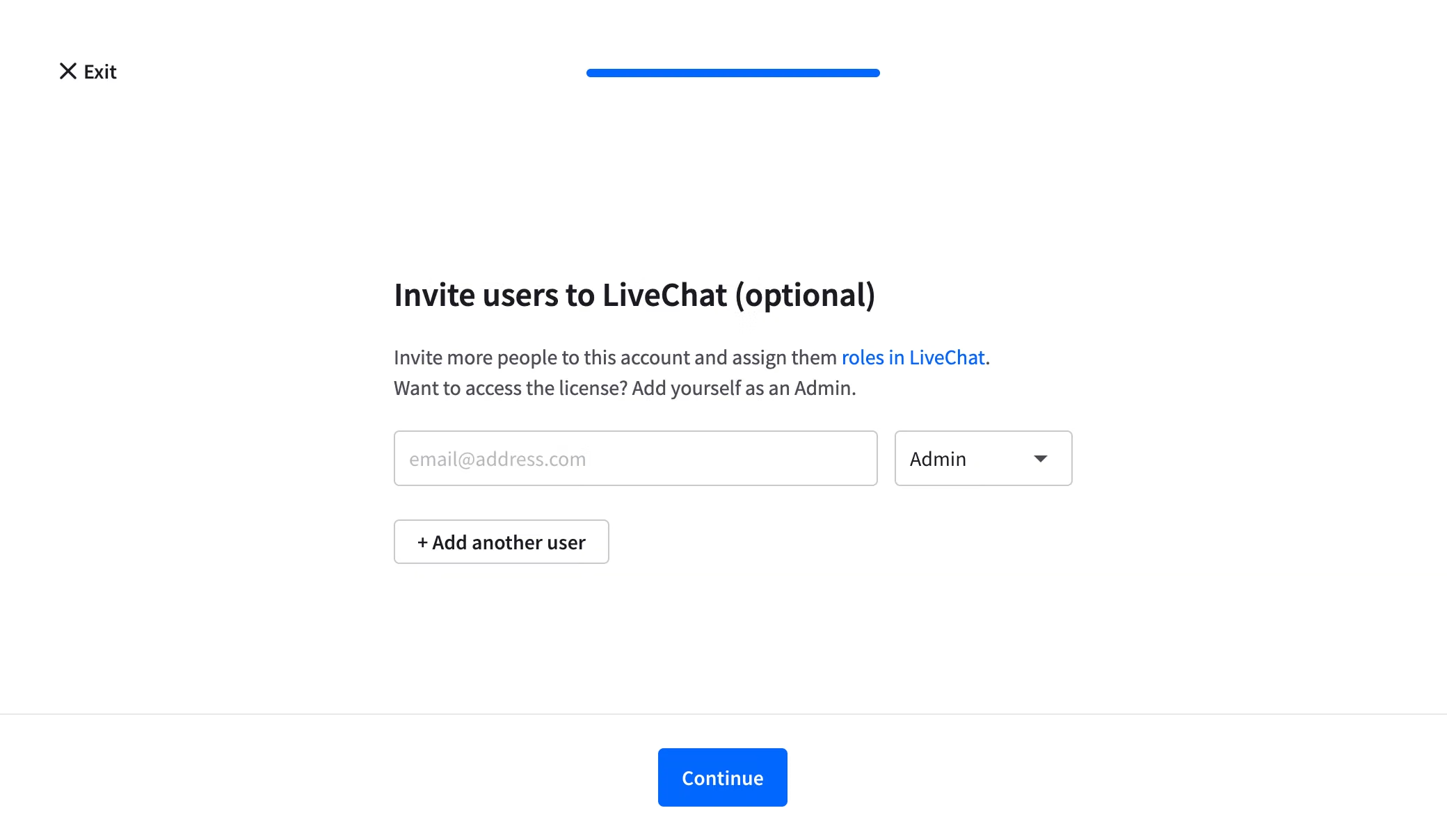
When you create a license for your client
Inviting users is the last step of creating a license. To add them:
Enter the email address of each new user.
Assign a role to each user.
Click Continue.
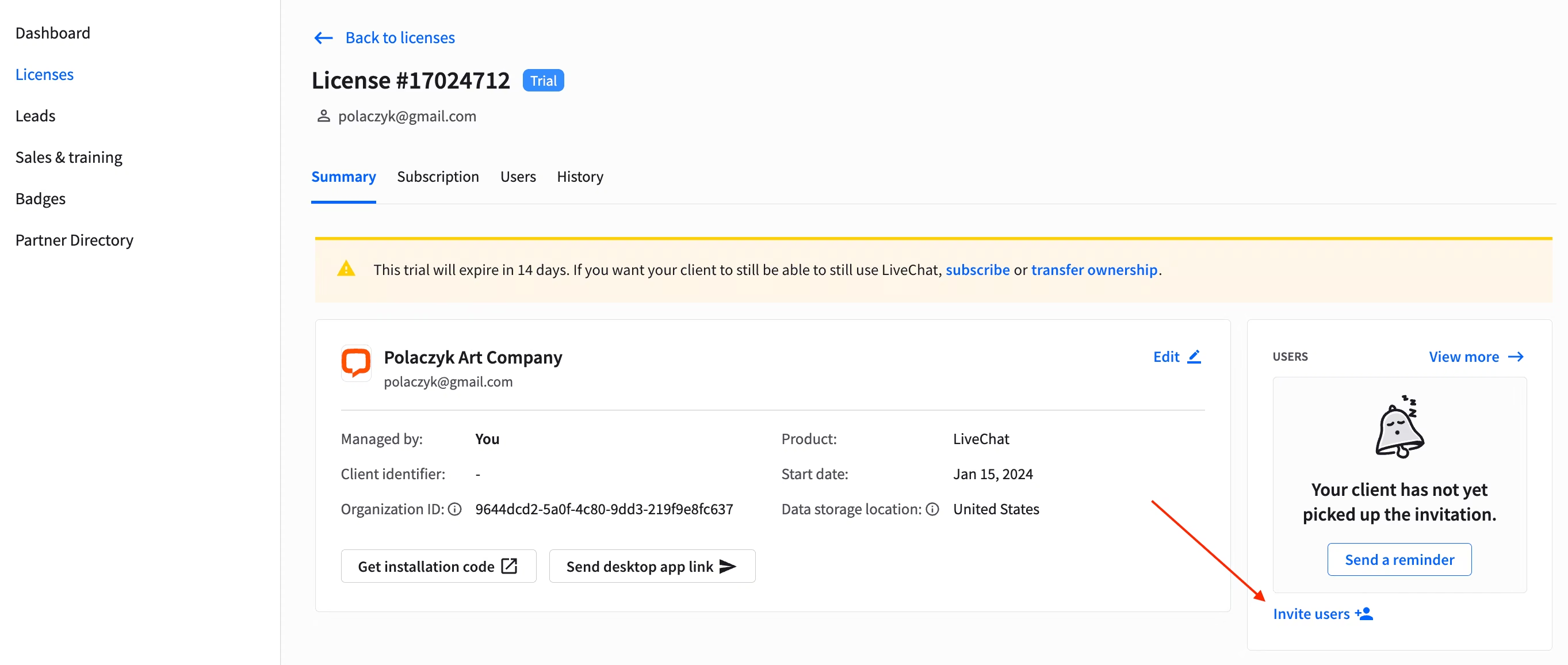
From the details of an existing license
Open the Clients tab and select the organization you want to invite more people to.
Go to Licenses and select the relevant license.
On the Summary screen, invite new users or send an invitation reminder.
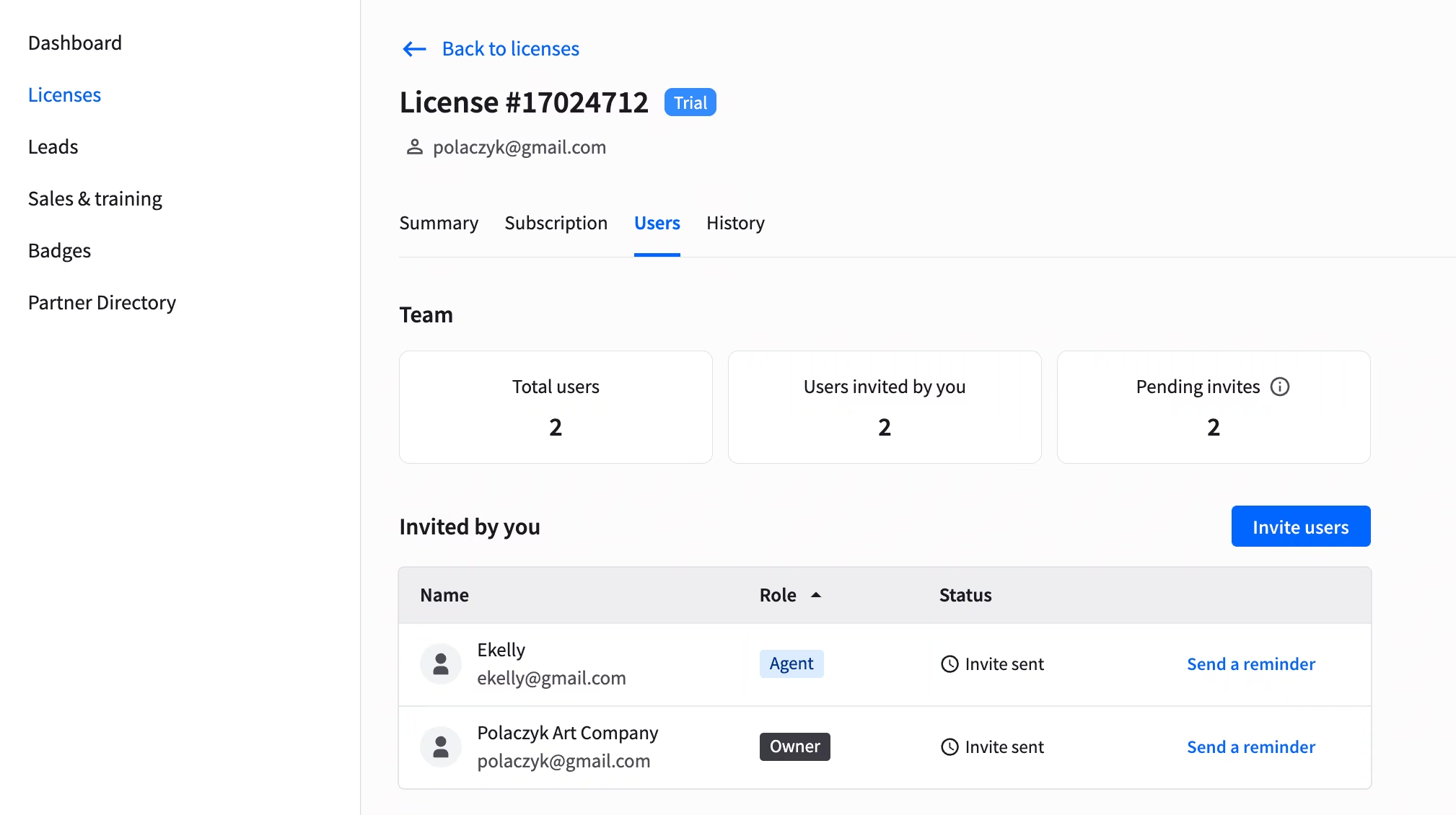
From the Users tab
In the license details, open the Users tab. Use it to:
Add new users (send new invitations).
Monitor the status of your invitations.
Resend the invitations that haven’t been picked up.
What notifications do you get for invitations?
After you resend the invitations, we send a notification to your inbox every time:
Your invitation was picked up (and a new user has created their account).
48 hours have passed, and the invitation wasn’t picked up.
These notifications help you stay on track with your license. To learn more, read License alerts.