License details
Find license details for your clients in the Partner app. See the Summary, Subscription, Users and History tabs and learn how to manage each license.
 Sylwia KocurUpdated 2 min read
License details show you everything about a client’s license in one place, from the installation code to subscription billing and user access. As a solution partner, you can open them for any client organization in the Partner app.
What are license details?
License details are the information you can view for each of your clients’ licenses in the Partner app. They include the installation code, subscription and billing data, assigned users, and a history of important events. Use them to make sure you have all the important information about your clients.
How do you open a client’s license details?
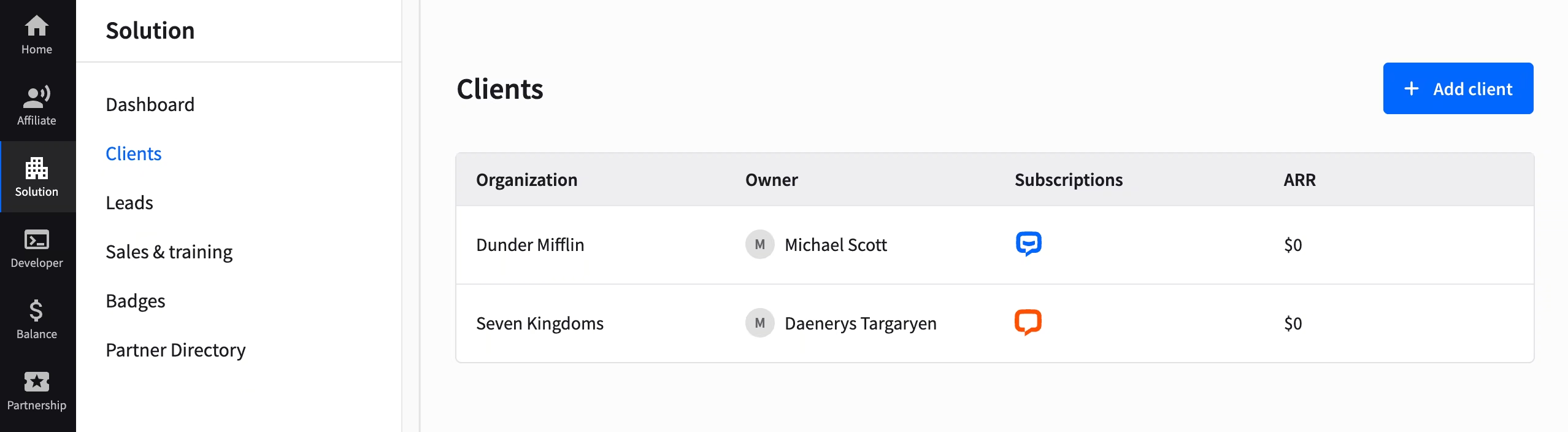
Go to Solution > Clients.
Select the organization you want to view.
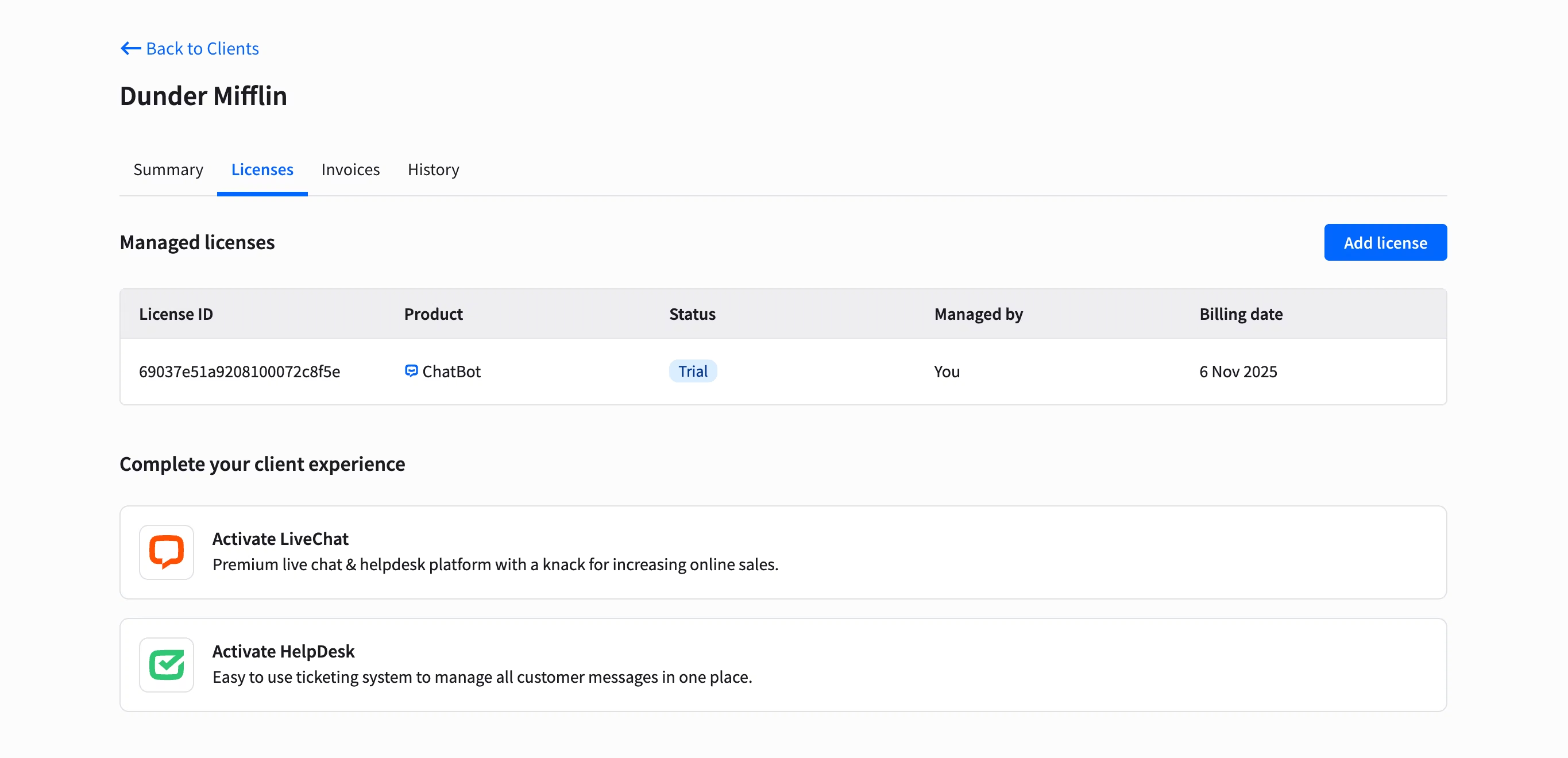
Open the Licenses tab to see all licenses this organization has.
Select a license to open its tabs.
What does each license tab show?
Here’s the description of all the tabs you’ll find inside a selected license.
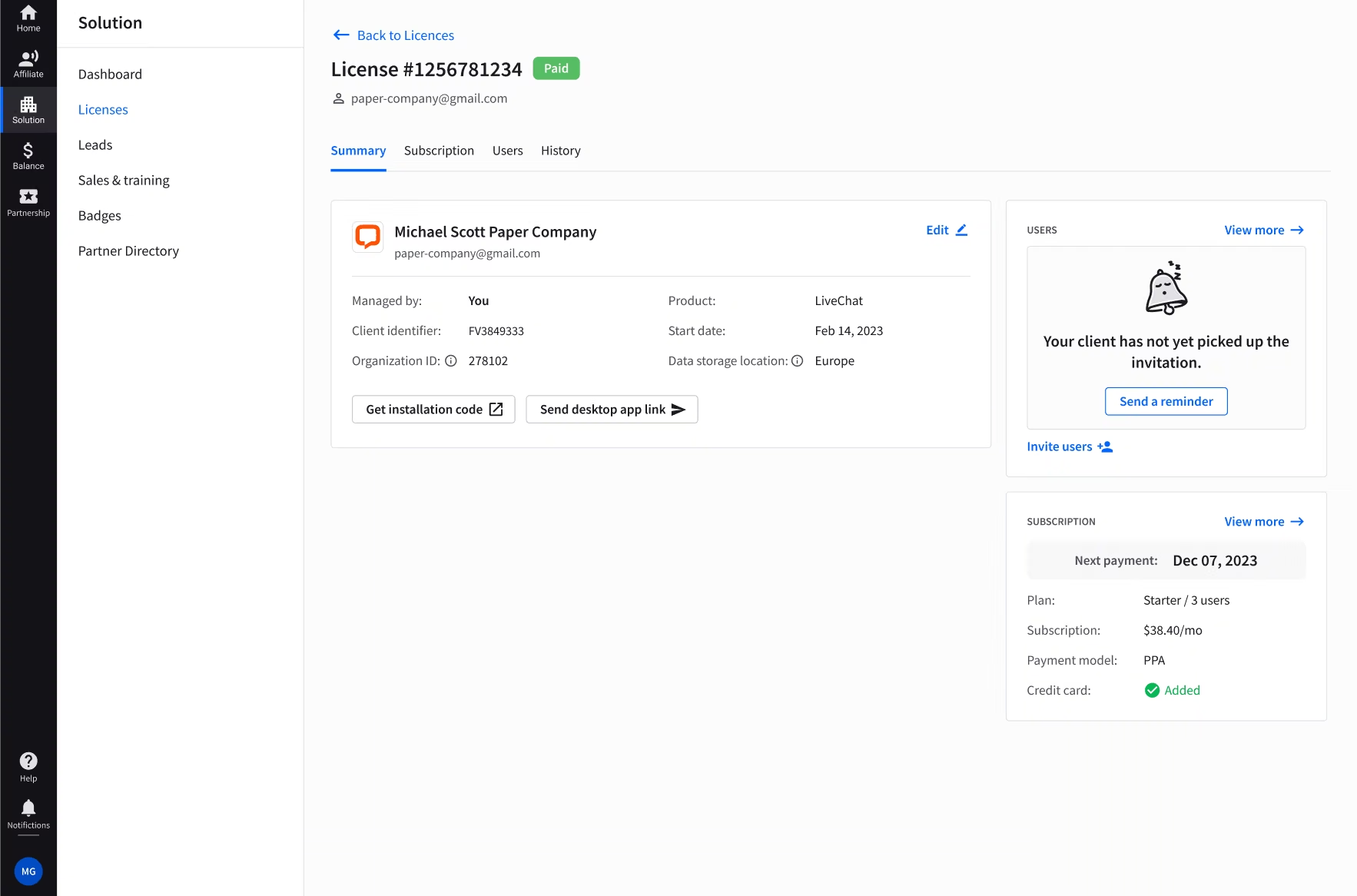
Summary
This tab provides essential information about your client. It includes the installation code, a shortcut for user invitations, and an option to send reminders for inviting more people to the license.
Subscription
On this tab, you have all subscription details like product, price plan, payment details and invoices.
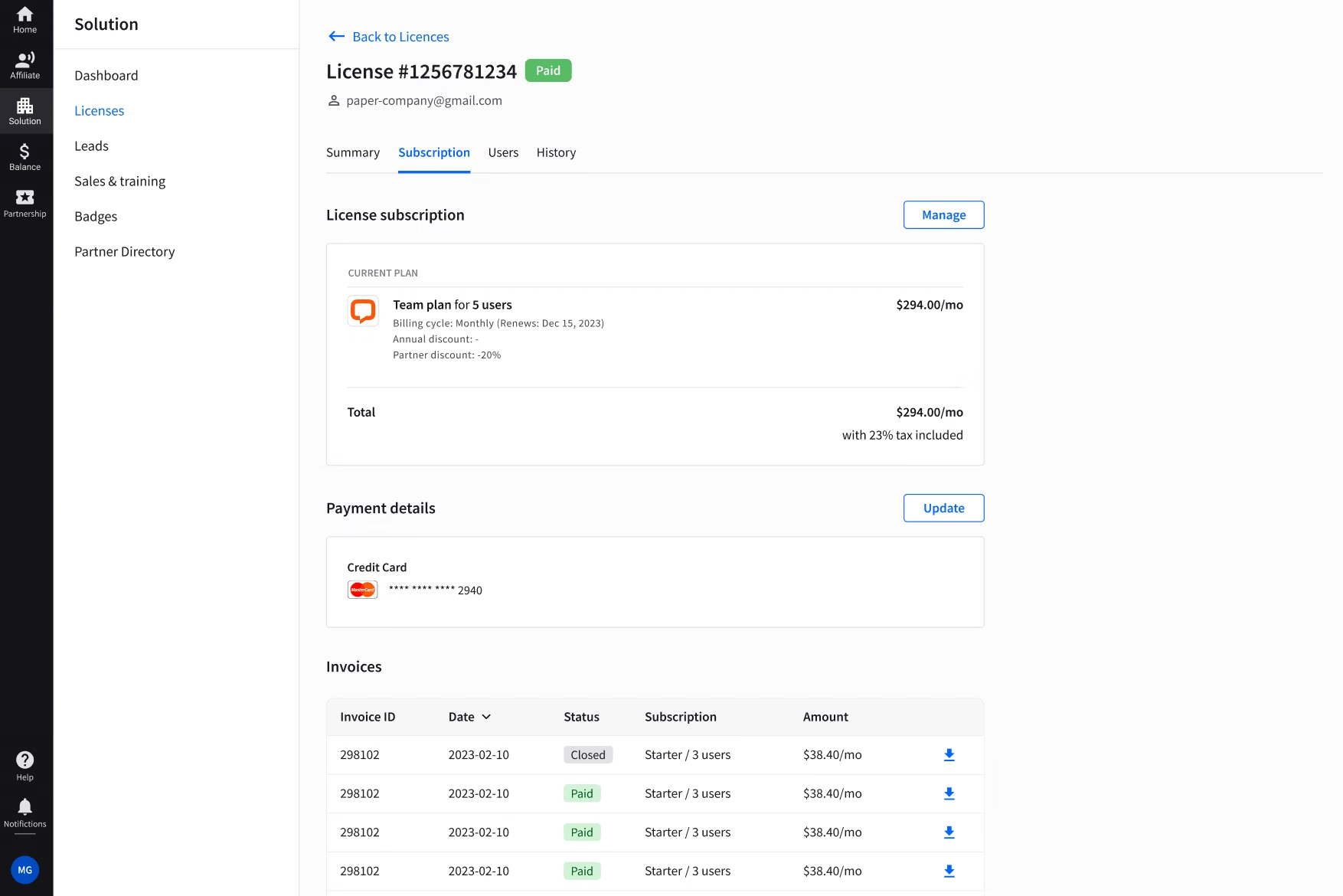
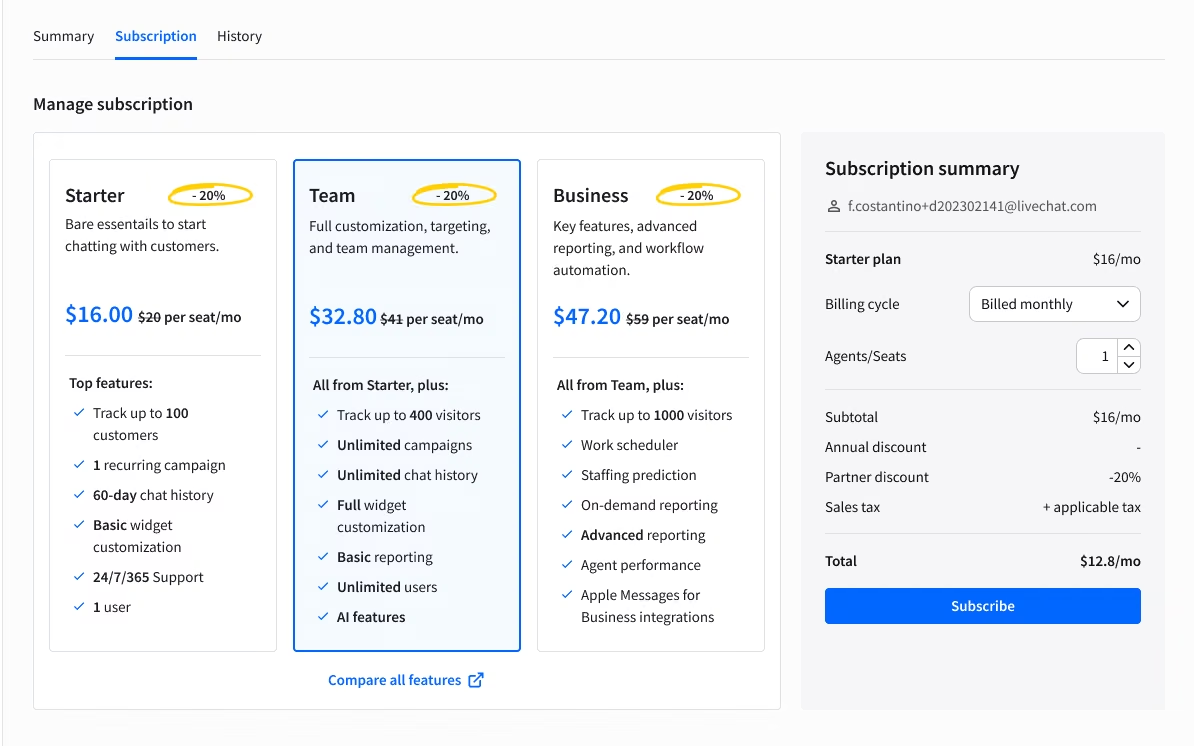
To manage the subscription, click Manage next to License subscription. You can then:
Adjust the price plan
Change the number of users
Choose a billing cycle
Cancel the subscription
Users
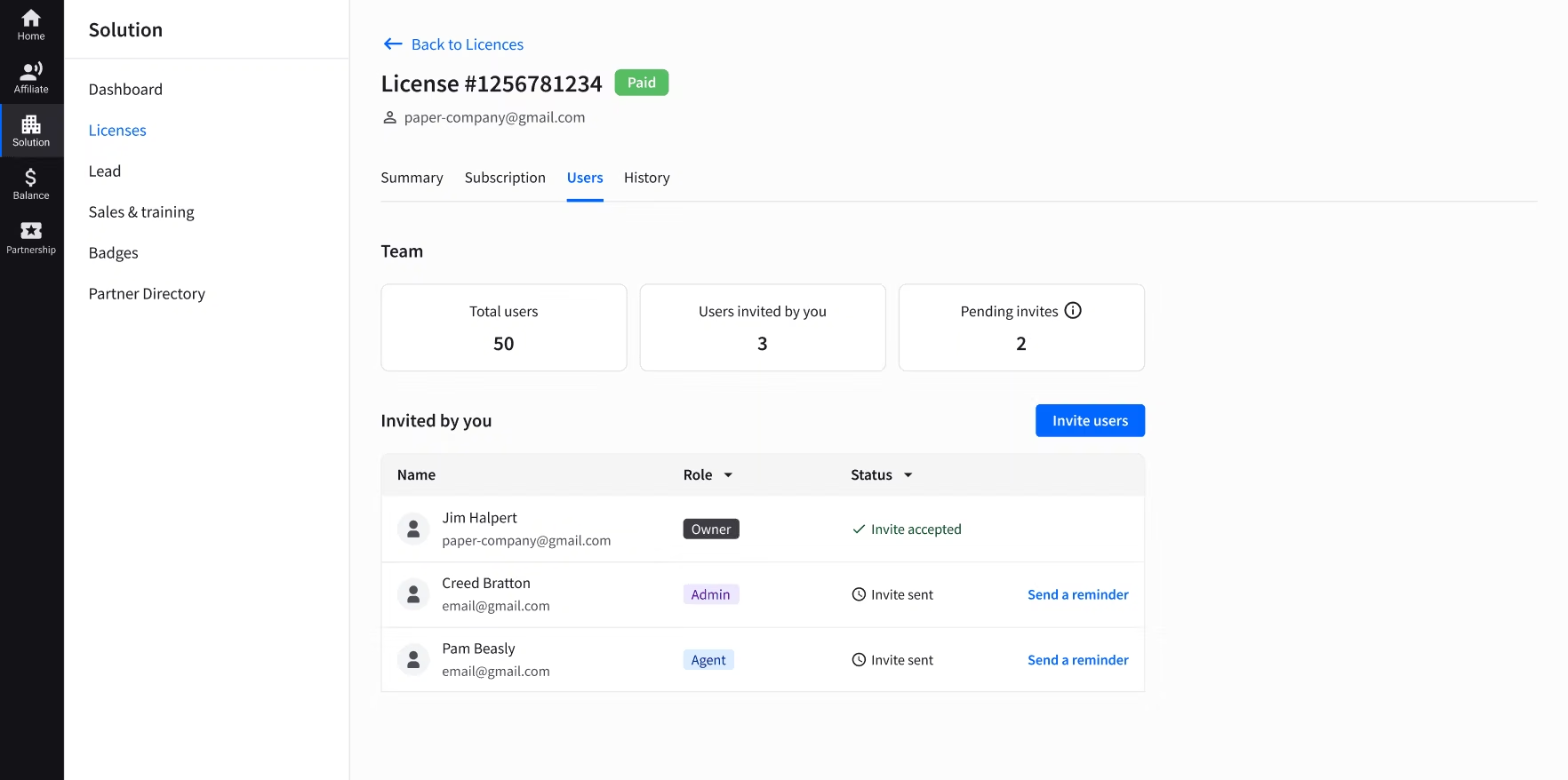
Here, you can see how many users are assigned to the account, what their roles are, and whether they accepted your invitation or not.
You can also send reminders to users who haven’t accepted your invitation yet, or invite new users.
Learn how to add new users to a license.
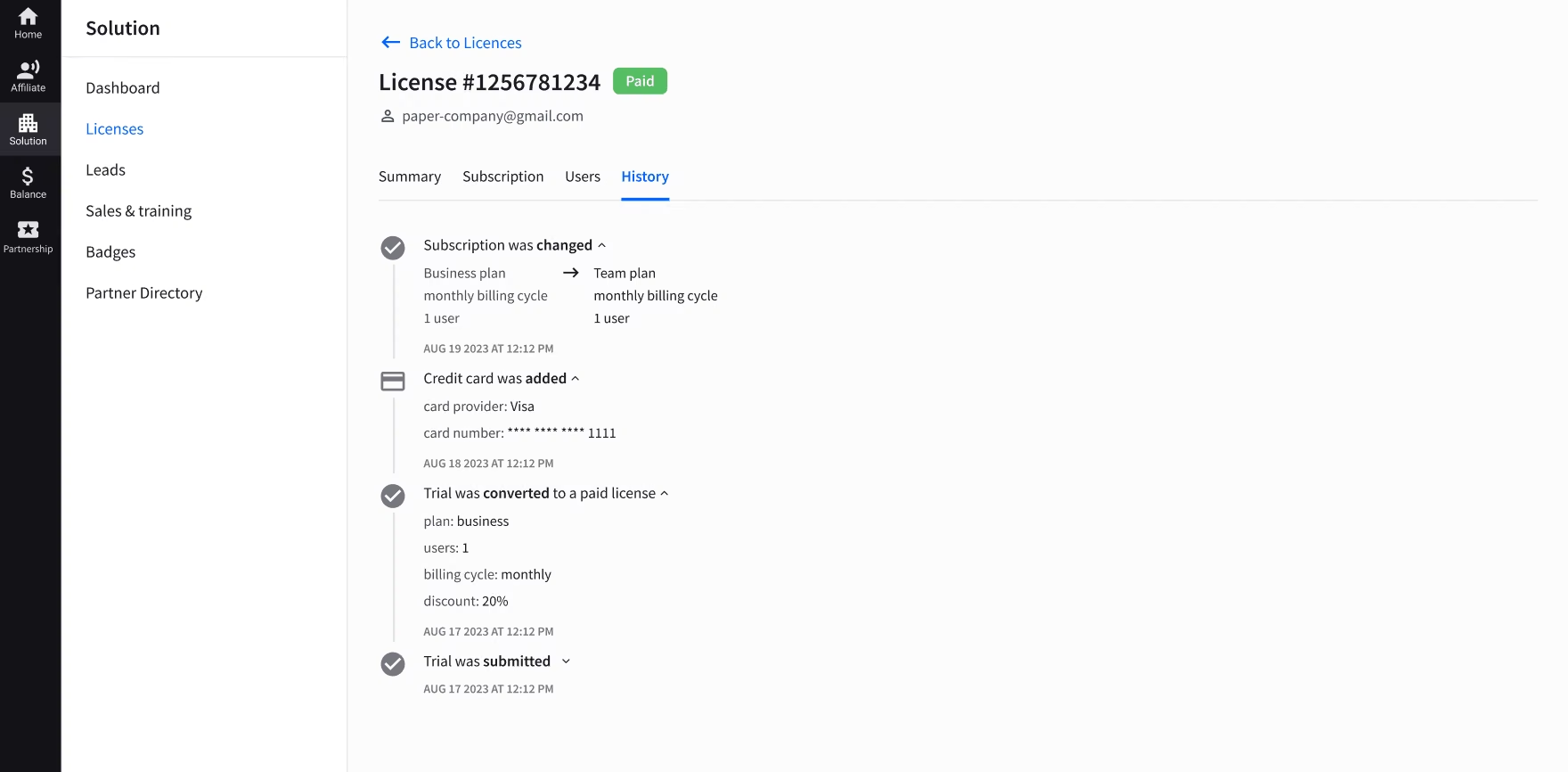
History
This tab presents a chronological timeline of all important events that happened on the license.
Read more about license history.