
How to transfer payment to your customer
Transfer payment to your customer in the Partner app when you end a cooperation or fix a payment manager mistake. Follow four short steps to hand it over.
 Sylwia KocurUpdated 1 min read
As a solution partner, you can transfer payment to your customer in the Partner app. It takes four short steps and hands the license over to them, which helps when you end a cooperation, correct a payment manager mistake, or give an expired license another chance.
When should you transfer payment to your customer?
Transfer payment in any of these situations:
You plan to end your cooperation with the customer, but they still want to use Text products.
You made a mistake and made yourself a payment manager.
You have some expired licenses under your profile and want to give your customers another chance with Text. Once you trigger the transfer, we restart the 14-day trial for your customers.
To review how you pay for licenses first, read How to pay for your customers' licenses.
How do you transfer payment to your customer?
Go to Solution > Licenses in the Partner app.
Click the ID of the license you want to transfer.
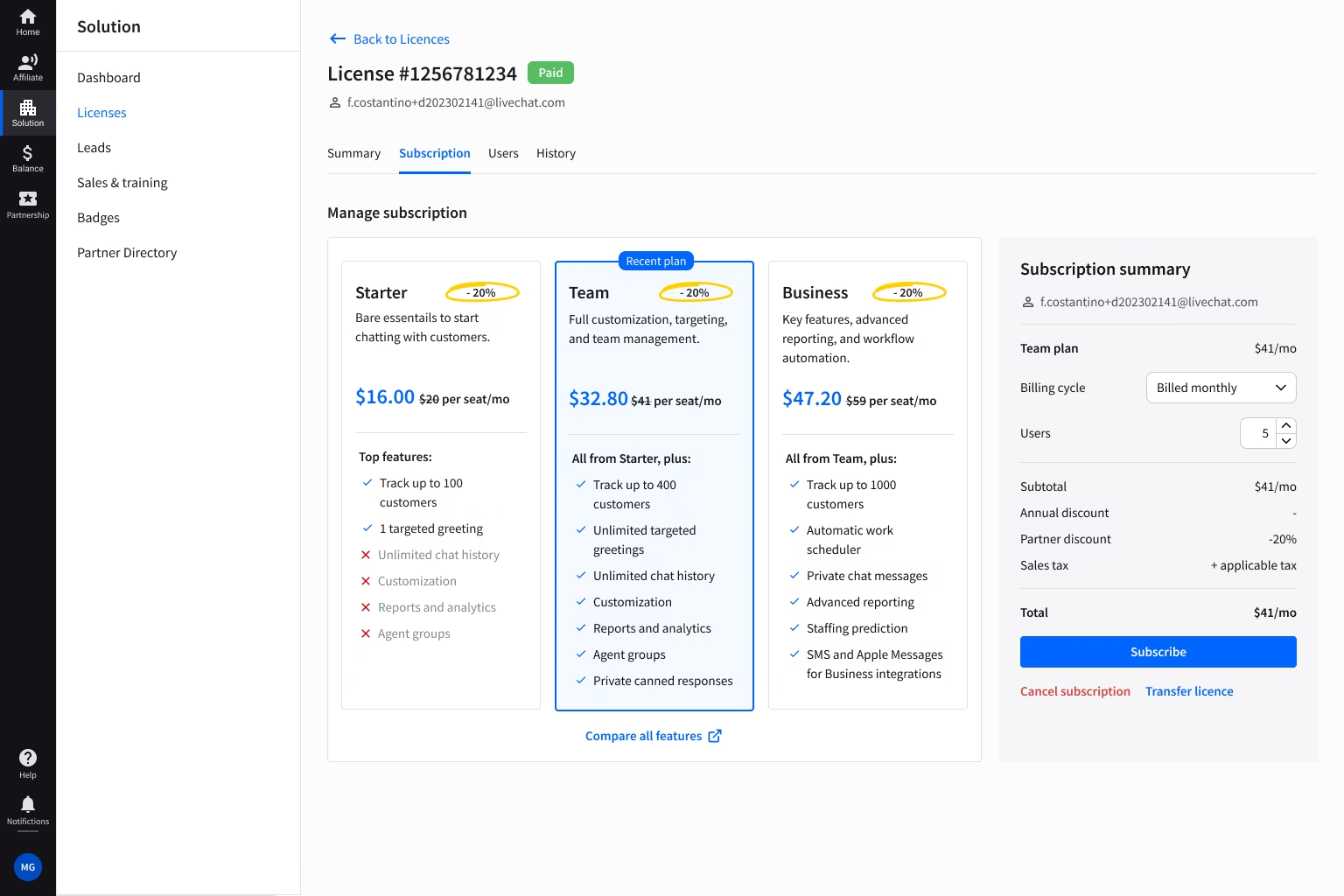
Open the Subscription tab and click Transfer license.
Confirm the transfer.
What happens after you confirm the transfer?
After you confirm the transfer, we send an email notification to the new owner and to all agents on the license.