
Tickets spam list
Manage the Tickets Spam List in Text App — automatically detect spam tickets, keep your inbox clean, and focus on real customer conversations.
 Wiktoria SmołaUpdated 2 min read
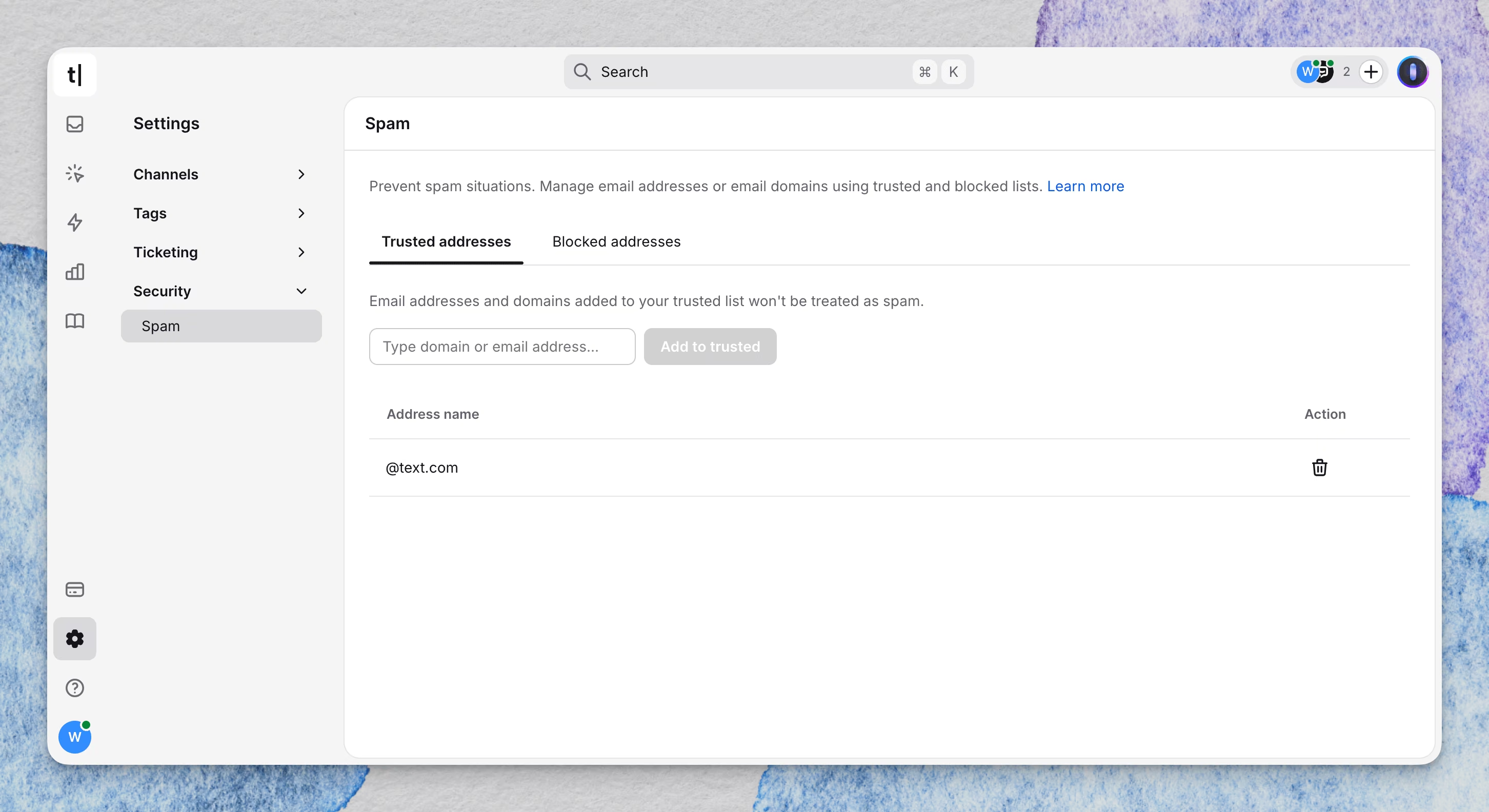
In Text App, you can manage your Tickets spam list by adding email addresses and domains. Set up your own anti-spam rules to prevent unwanted messages by using Trusted and Blocked lists. To get started, go to Settings and select Spam.
Trusted and Blocked Lists
In Spam, you will find two lists: Trusted addresses and Blocked addresses.
Trusted addresses
If you add email addresses or domains to your Trusted addresses, they won’t be marked as spam.
Enter the email address or domain into the field and click Add to trusted to add it to the Trusted addresses.
The new trusted email address (for example, mail@gmail.com, mail@outlook.com) or domain (for example, @company.com) will then appear in your Trusted addresses.
You can delete entries at any time using the Delete action.
Blocked addresses
If you add email addresses (for example, mail@gmail.com, mail@outlook.com) and domains (for example, @company.com) to your Blocked addresses, they will be marked as spam.
Enter the email address or domain into the field and click Add to blocked to add it to the Blocked addresses.
The new blocked email address or domain will appear in your Blocked addresses.
You can delete entries at any time using the Delete action.
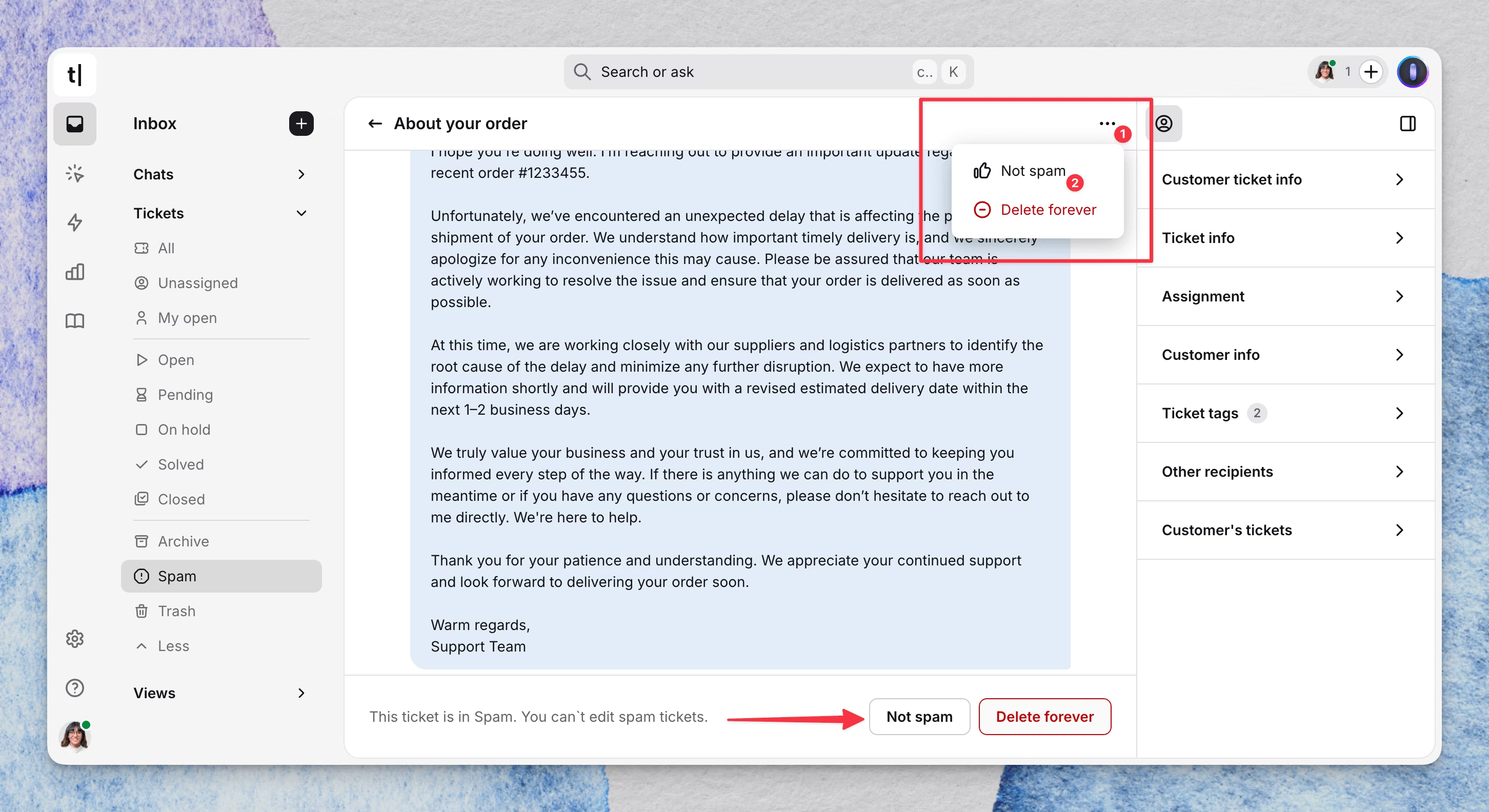
If you notice a ticket in spam that shouldn’t be there, you can change its status.
Questions?
If you have any questions about this article, feel free to start a chat with one of our Support Heroes. They are available 24/7 and always ready to provide additional information on adjusting your Text App license.