
How to turn repetitive support tasks into skills
Learn how to automate customer support with skills in Text. Turn repetitive tasks into automations that run on their own. Build your first skill today.
 Wiktoria SmołaUpdated 7 min read
Repetitive work fills a support day: tagging chats, following up on bad ratings, copying emails into a CRM, answering "Where is my order?" again and again. You can automate customer support with skills in Text. Build a skill once, and it runs on its own, leaving your team free to focus on the conversations that need a human touch.
What is a skill in Text?
A skill is a set of instructions that tells Text what to do and when. Every skill starts with a trigger, such as a new ticket or a customer message. Then it runs one or more actions, such as transferring a chat to a team, creating a ticket, or sending data to another app. You build skills in Playbook by describing them in plain language, with no coding.
Text has two types of skills. The easiest way to choose is to ask yourself what should start the automation.
Workspace skills react to events. If something should happen when a chat ends, a ticket is created, or a rating comes in, choose a workspace skill. It works quietly in the background, and nobody on your team has to remember to do it.
AI Agent skills react to your customers. If a specific message from a customer should trigger the skill, such as a question about an order, choose an AI Agent skill. Your AI Agent can then ask for missing details and take the next steps right inside the conversation.
Which repetitive tasks should you automate first?
You don't need to automate everything at once. If you're new to skills, start with the tasks that take the most time and require the least thought. Look for tasks that:
Happen several times a week, or every day.
Follow the same steps every time.
Use information you already have, or one answer from the customer.
Are easy to check, making mistakes quick to spot and fix.
Build one skill, watch how it performs in Runs, and then add the next. A focused skill is easier to test and improve than one that tries to do everything.
How do you turn a manual task into a skill?
Playbook builds the first version for you from a plain-language description. You review it, adjust it, and switch it on.
Open Playbook in Text from the main menu.
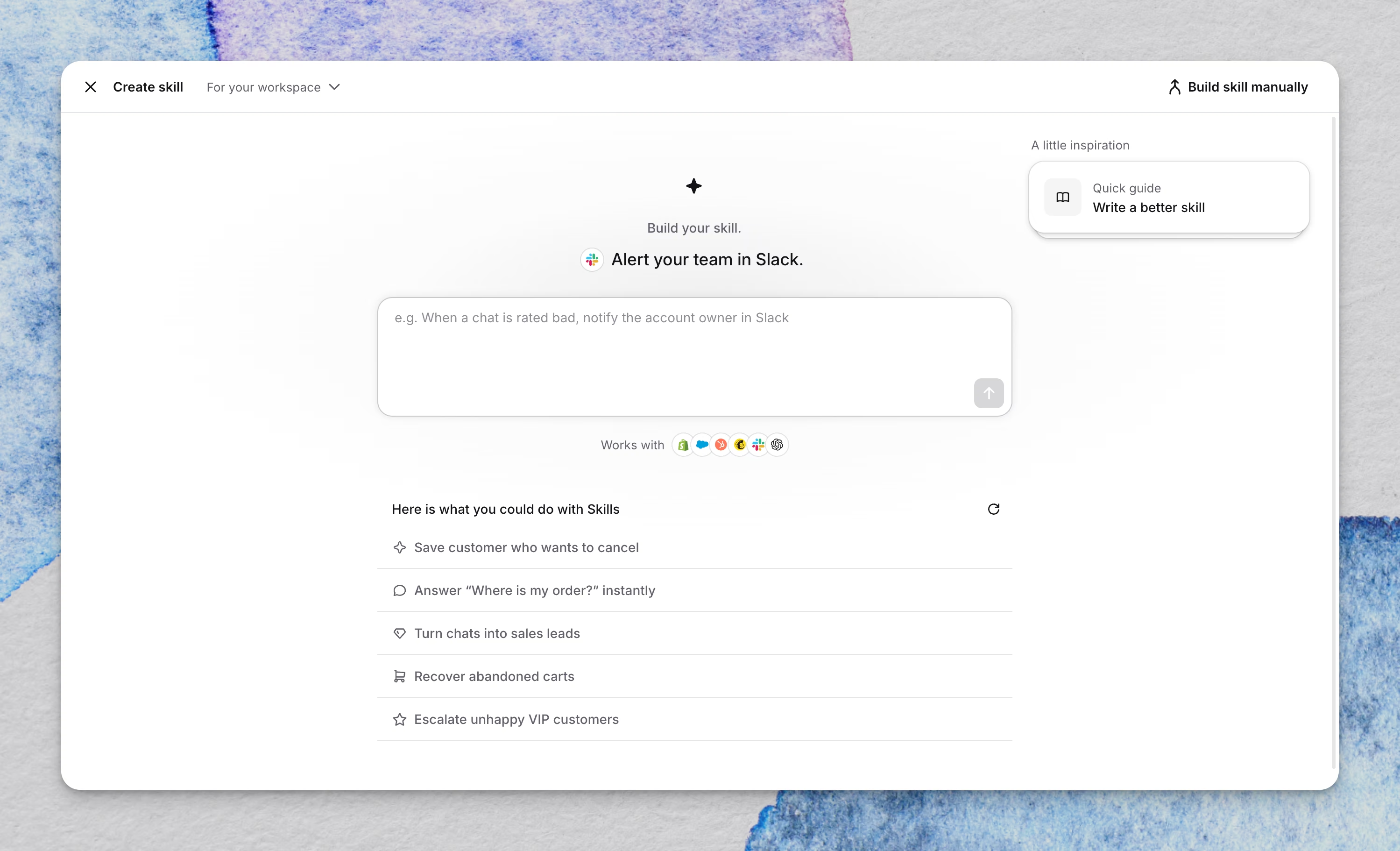
Click + Create skill.
Choose the type: For your workspace or For your AI Agent.
Describe what you want in plain language. Type / to add a predefined trigger or action to your description.
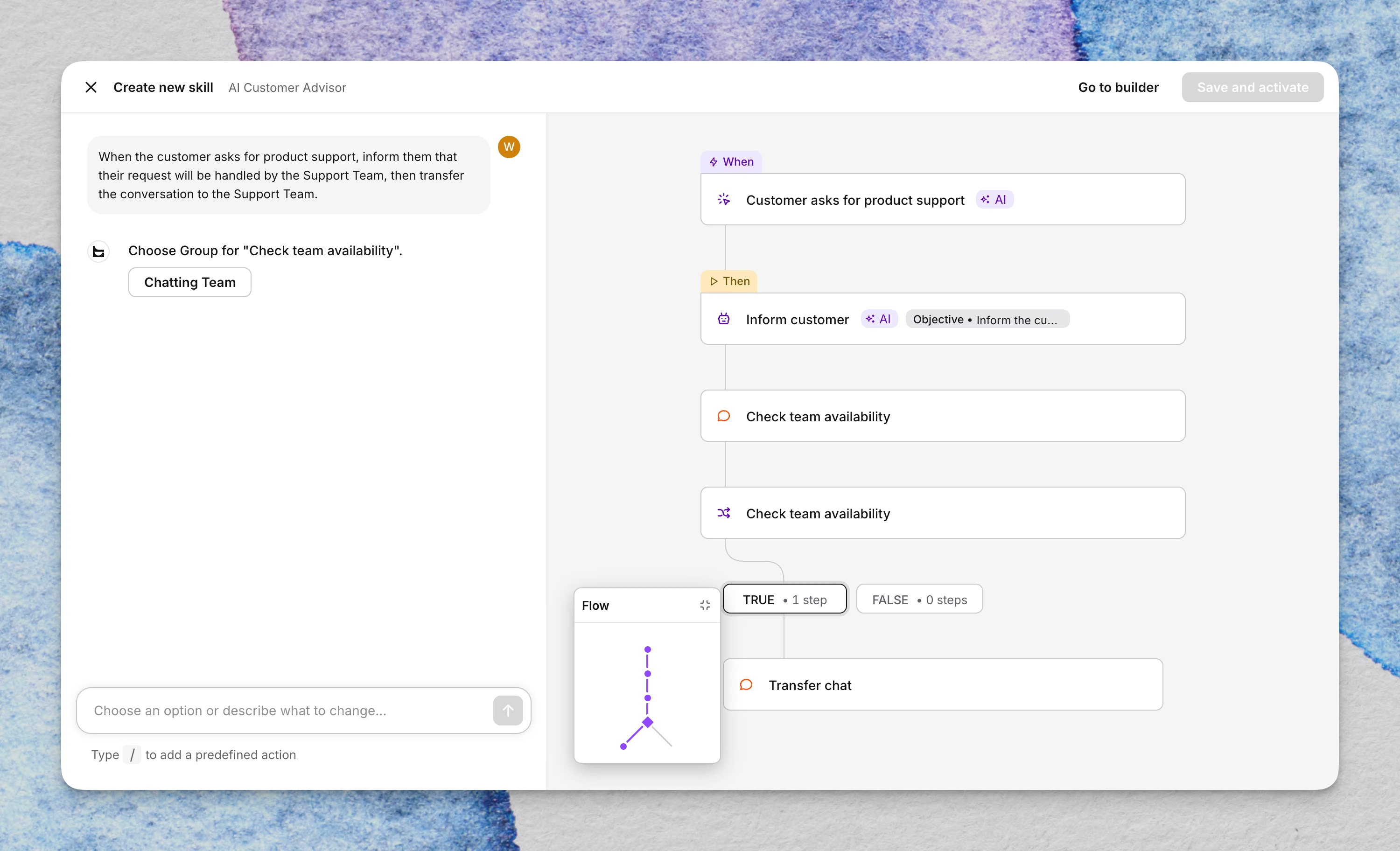
Review the skill that Playbook builds. Click Save and activate to make it live, rewrite your prompt to change it, or click Go to builder to fine-tune it block by block.
Test it. If you edited the skill in the builder, click Publish first, then start a chat on your website and check that the skill does what you expect.
Open Runs to see which runs completed and which failed. Click a failed run to see the exact step that broke.
You can also click Browse templates in Playbook to start from a ready-made workspace skill with the trigger and actions already configured.
How do you write a prompt that builds the right skill?
The more specific your prompt, the better Playbook can build your skill. Name the moment it starts and every step after it.
Too vague: Help my customers get the answers they need a lot faster - there is no trigger and no steps.
Clear: When a ticket is created with the refund tag, notify our support lead on Slack - the trigger and every step are clear.
Which skills can you build first?
Here are three ideas for skills that remove common manual work. Each starts with a problem, then shows the skill that solves it.
Follow up automatically after a bad chat rating
The problem: A customer rates a chat badly, and nobody notices until the weekly report. By then, the customer has moved on.
The skill: A workspace skill that reacts the moment the rating arrives. Describe it like this:
When a chat gets a bad rating, wait 5 minutes and then create an urgent ticket and send a message to our support lead on Slack.
In the builder, this skill uses the Chat rated trigger set to Bad rating, a Wait action, Get chat transcript, and Create a ticket, followed by a Slack action that messages your support lead. The Wait step matters. Customers can leave a bad rating while the conversation is still going, and a ticket created straight away would make the follow-up feel automated. Waiting 5 minutes gives the chat time to finish and keeps the follow-up personal. The ticket includes the transcript, the customer's name, and their email address. Your team has everything they need to review the conversation and follow up. The Slack message makes sure someone sees it right away. Connect Slack to Text first to let the skill act there.
The result is a recovery opportunity instead of a lost customer.
Send customer details to CRM when a chat ends
The problem: After every chat, an agent manually enters the customer's details into the CRM. Some leads get entered late. Others never get entered.
The skill: A workspace skill that runs when a chat ends and the customer's email is already in their profile. Describe it like this:
When a chat ends, and the customer's email is available in their profile details, then send the customer's details to HubSpot.
The "and" part works as a condition: the skill runs only for customers whose email is on file. The Text HubSpot integration lets you map chat data to HubSpot fields and decide which details go into which fields. Every qualifying chat reaches your CRM without anyone copying anything by hand.
HubSpot is just one example. Skills also support Salesforce, Klaviyo, and Shopify natively, and you can send customer details to whichever tool you already use. If you have a custom CRM, use a webhook to send the details there.
Let your AI Agent check an order's status
The problem: "Where is my order?" is one of the most repeated questions in support. Each one pulls an agent away from a task that needs judgment.
Text comes with an AI Agent that you can train on your own knowledge, such as your website, help center, and files, by configuring your knowledge sources. With skills, it can also take repetitive tasks like this one off your team's plate.
The skill: An AI Agent skill that handles the lookup. Describe it like this:
When a customer asks where their order is, ask for the order number if they haven't shared it, check the status through our order API, and tell the customer the result. If the order can't be found, create a ticket and tag the chat missing_order_id.
Custom skills can call external services through an API. Your AI Agent can then fetch live order data from your store or order system and reply right away. The fallback matters: if the lookup fails, the customer still gets help, and your team gets a ticket with the details.
Combine both types. An AI Agent skill collects the problem details and creates a ticket. A workspace skill then picks up that ticket, assigns it to the right team, and posts a summary to Slack.
Good to know
Use a precise trigger. "When the customer asks about shipping costs" works. "When the customer needs help" fires too often.
Keep one goal per skill. Separate skills for order status, discounts, and escalations are easier to test than one large skill.
Put actions in the right order. Collect details, summarize, create the ticket, apply tags, and transfer or close the chat last. A chat that is transferred too early may not continue collecting information.
Always define a fallback. Decide what happens when the order number is missing, the customer profile is empty, or the team is offline.
Create tags and groups first. Names in your skill must match your workspace exactly, including capitalization.
Know the limit. An AI Agent can have up to 10 AI Agent skills.
Try a lighter option for simple jobs. If you only need to tag or assign tickets when a keyword appears, Ticket rules may be enough.
For more on writing reliable skills, read Custom skills vs. Custom voice.
For conditional logic and variables, see Advanced Playbook usage.
Frequently asked questions
Do I need to know how to code to build a skill?
No. Describe what you want in plain language, and Playbook builds the skill for you. You can then review it, fine-tune it in the builder, and publish it. Connecting an external service, such as an order system, may require an API endpoint from your developer or platform.
Can I use workspace skills and AI Agent skills together?
Yes. They work well as a pair. An AI Agent skill can collect a customer's details and create a ticket during the chat. A workspace skill can then route that ticket to the right team and post a summary to Slack without a manual handoff.
Can I edit a skill after I publish it?
Yes. You can edit a skill at any time, whether you built it from a prompt, a template, or in the builder. Remember to publish your changes when you finish, because edits take effect only after you publish. Use the Runs view afterward to confirm the updated skill completes without errors.
What happens if a skill fails?
The run appears as Failed in Runs. Open it to see the exact step where it stopped, which usually indicates an incorrect configuration, such as a missing tag or an incorrect field. Fix the step, publish the change, and test again.